Gateway Creation
Create a Virtue Gateway, attach MCP servers, and enable security features through the dashboard UI.
Prerequisites
Before creating a gateway:
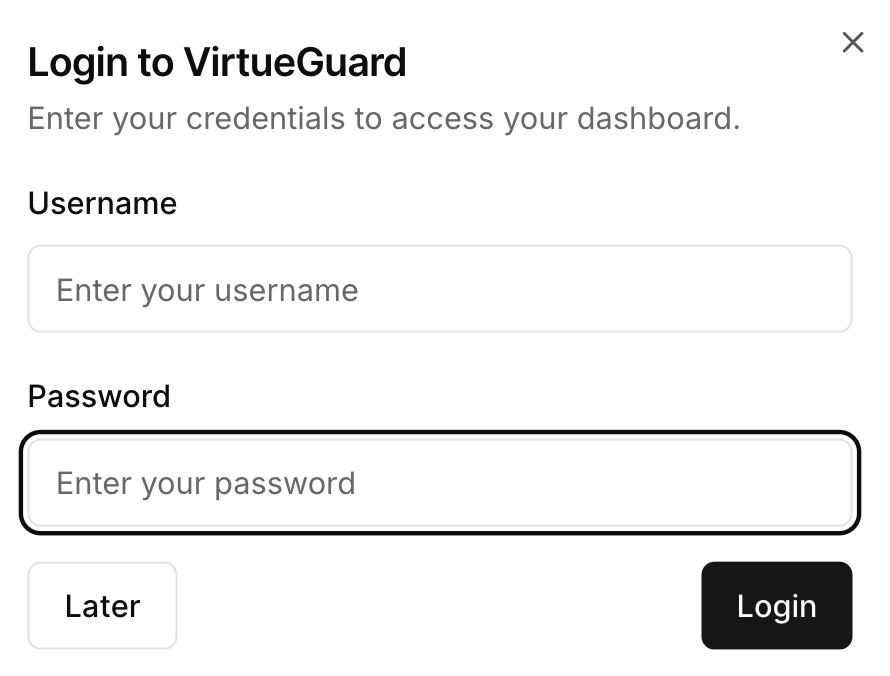
- Log in to the VirtueAgent dashboard (new users contact Virtue AI admin for account registration)
- Connect your MCP servers
- If you plan to enable AgentGuard, create a policy set first
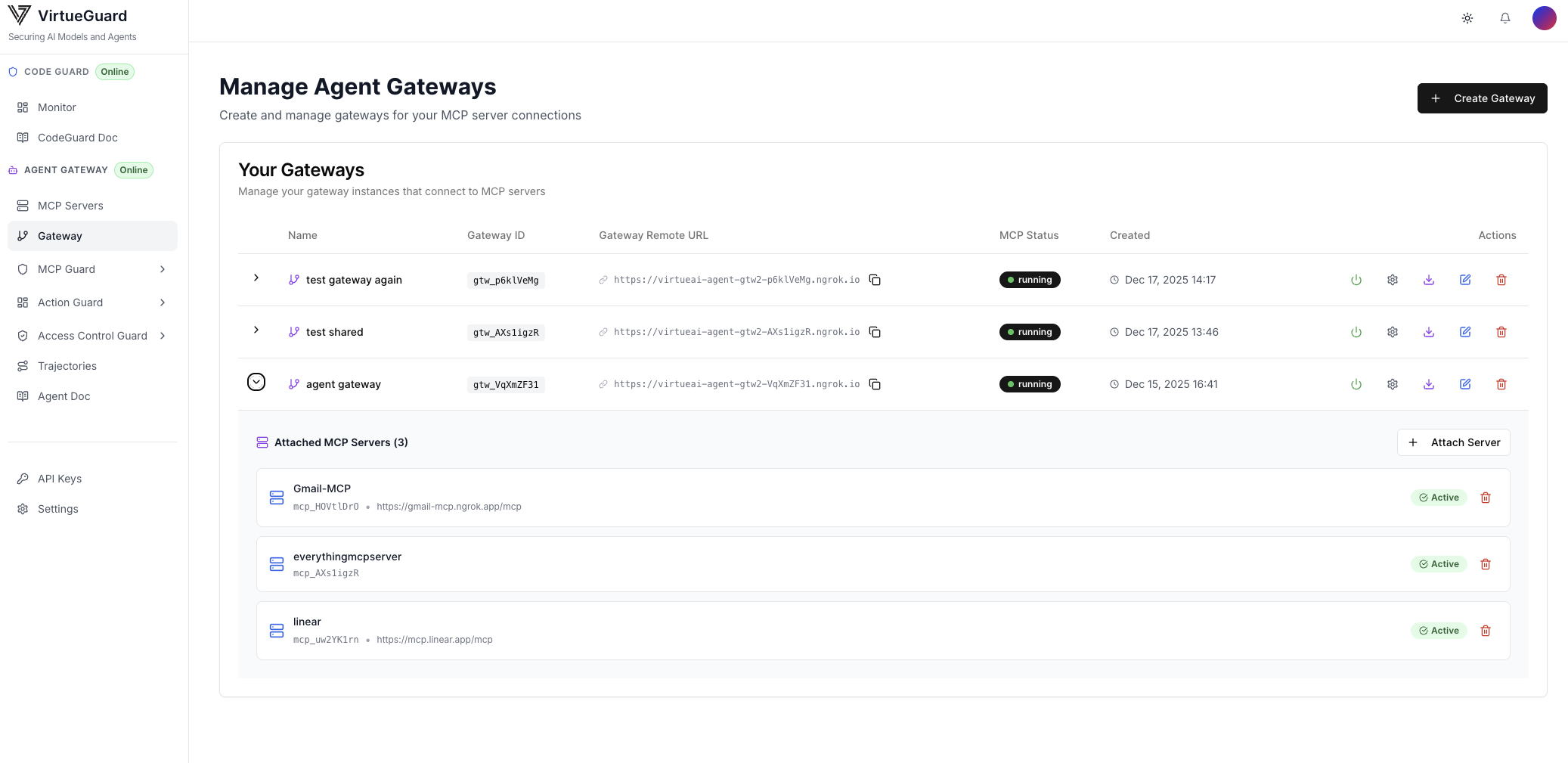
Create a Gateway
Navigate to the Gateway tab, click Create Gateway, and enter a gateway name.
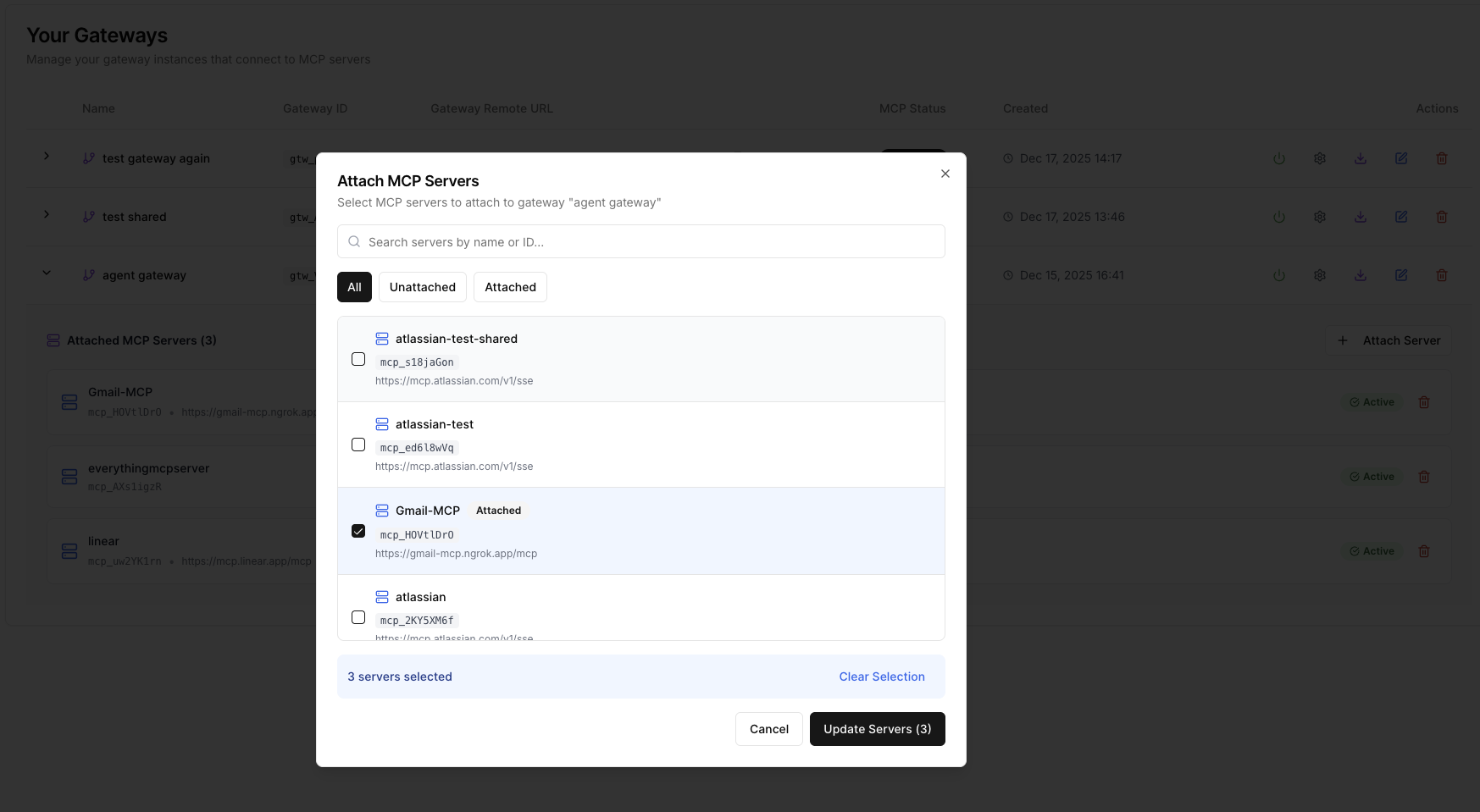
Attach MCP Servers
Select the created Gateway, click Attach Server, choose the MCPs to attach, and click Update Servers.
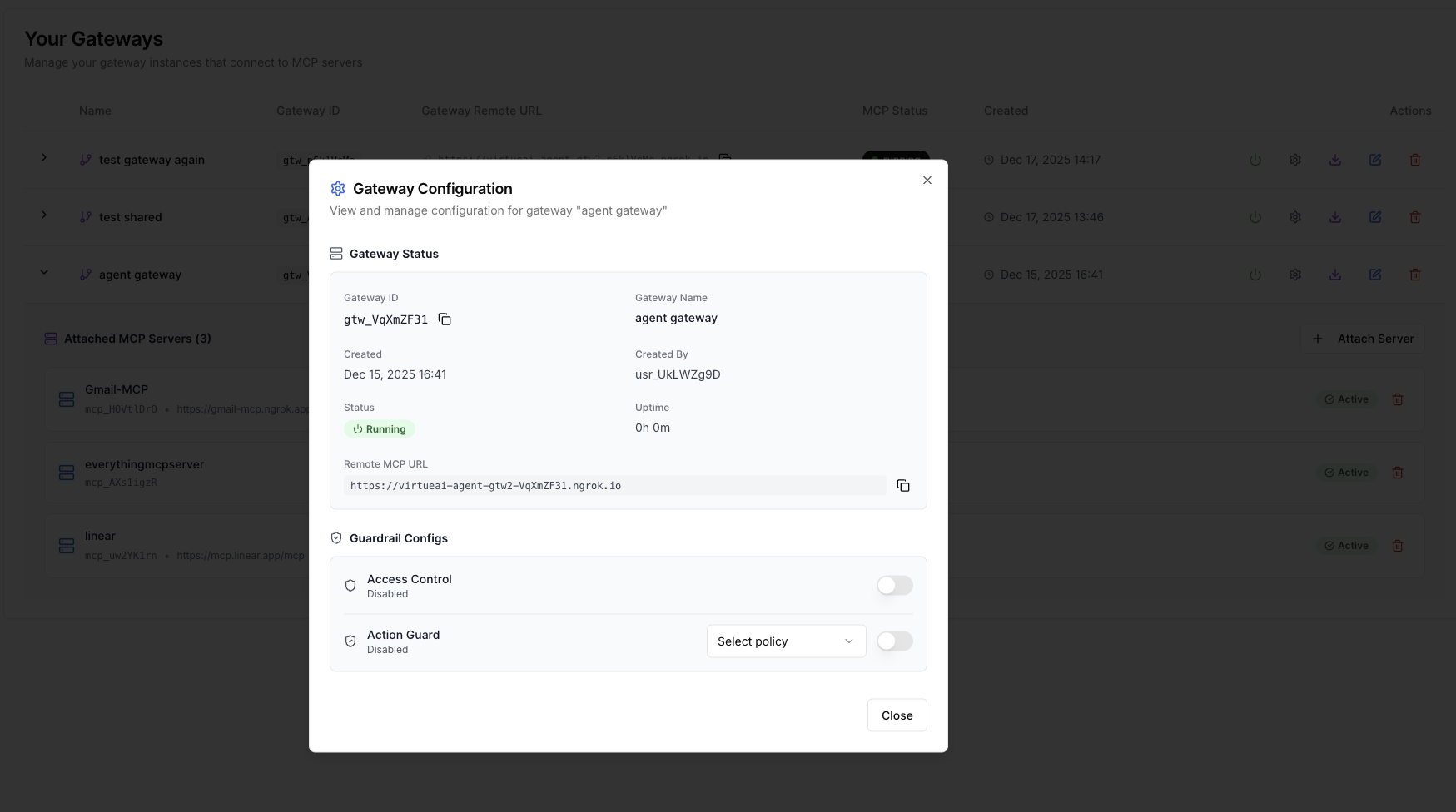
Enable Security Features
Click the settings icon next to the gateway to enable AgentGuard and/or Access Control:
- AgentGuard — requires a policy set to be configured first (see Connection and Configuration)
- Access Control — configure per-group tool and data source permissions (see Access Control)
Start the Gateway
Click the Start button to start the Gateway service. The status changes to Running when the service is ready.
Once your gateway is running, proceed to connect your AI client.