Connection and Configuration
Configure AgentGuard policies and monitor activity from the dashboard. On the AgentGuard tab, use the left sidebar to navigate between the Monitor and Manage Policies.
Configure Safety Policies
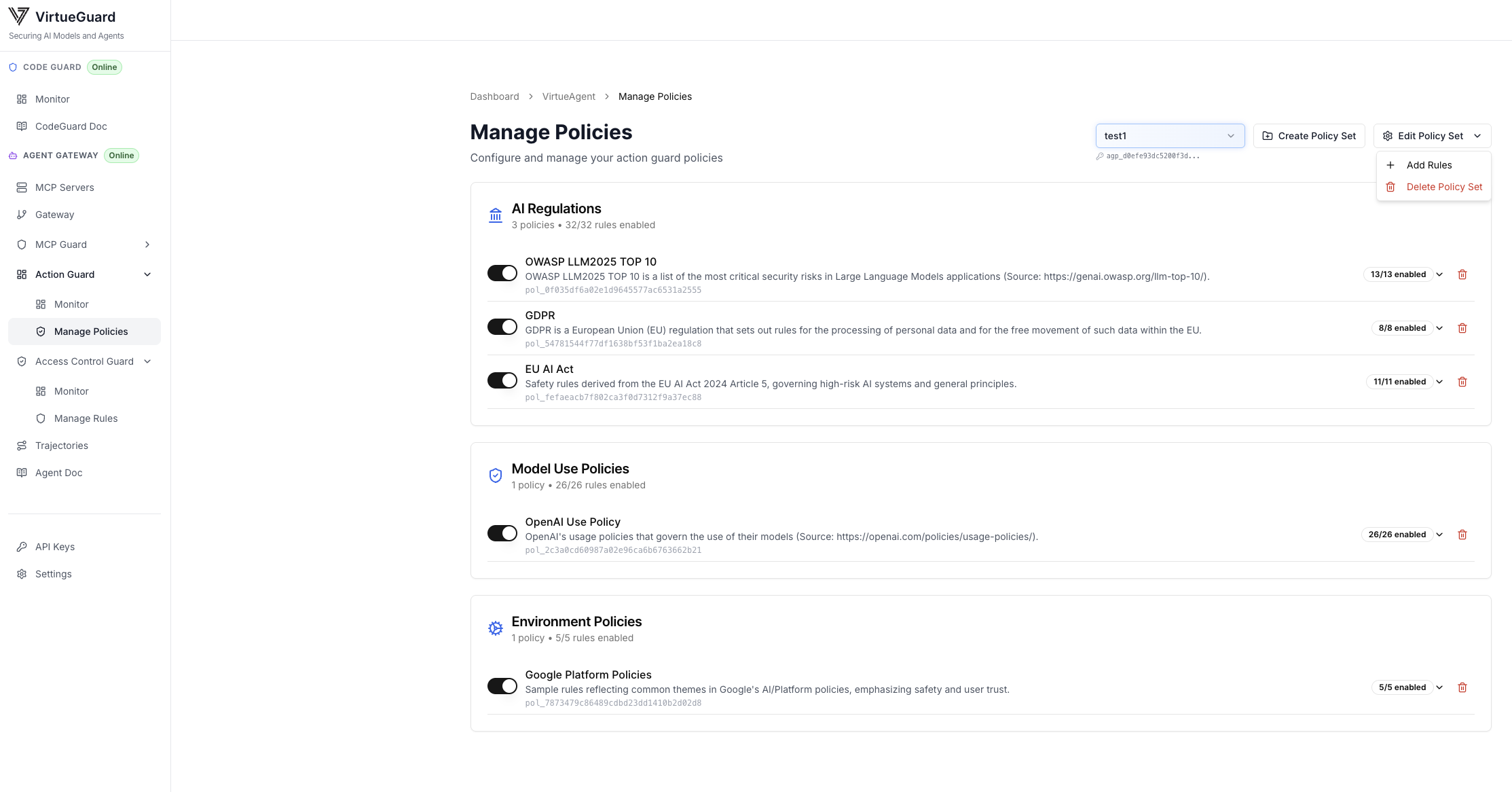
To run AgentGuard, first create a policy set by clicking the "Create Policy Set" button under the "AgentGuard / Manage Policies" tab. By default, we support a set of standard policies including EU AI Act, GDPR, OWASP LLM Top 10, etc. You can toggle individual policies on/off to enable or disable them. You can also upload customized policies by clicking "Add Rules". We support PDF and TXT file formats for customized policies.
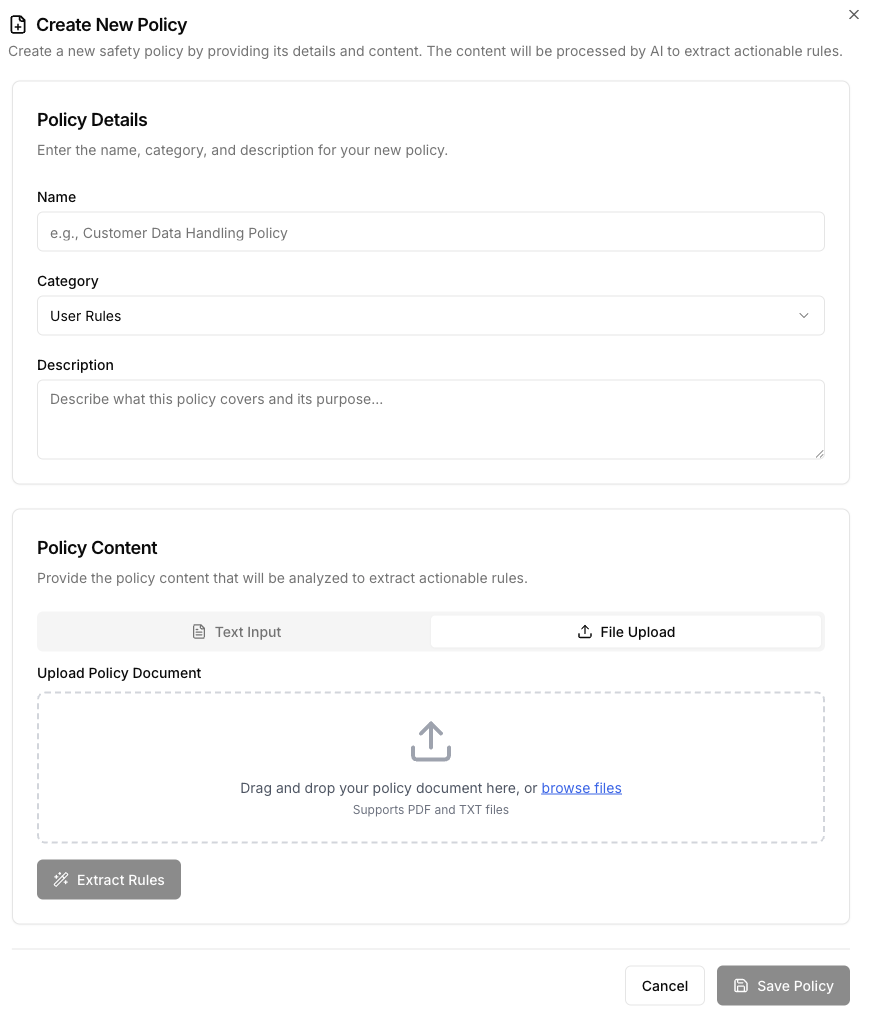
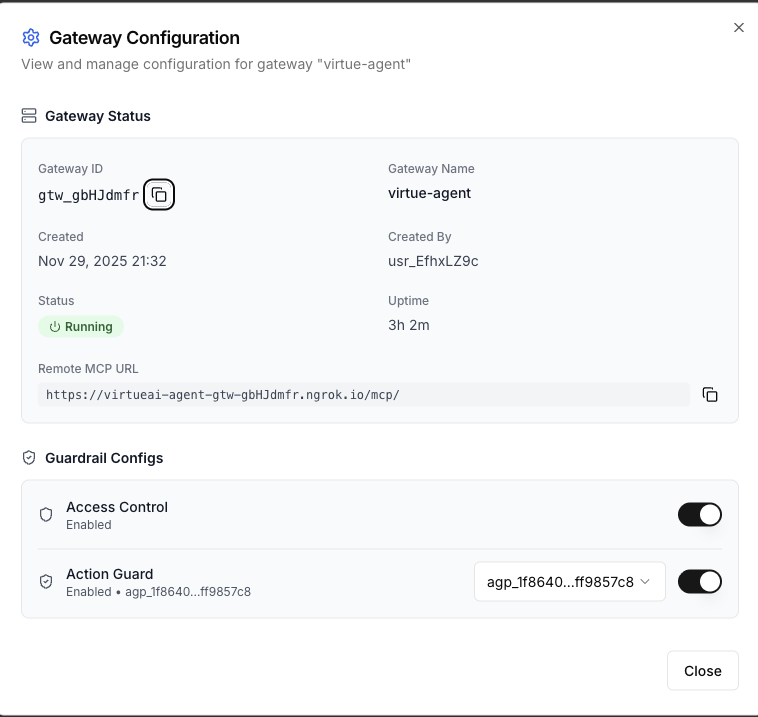
After creating the policy set, turn on AgentGuard for a selected gateway by clicking the settings button for that gateway and enabling AgentGuard with your chosen policy set.
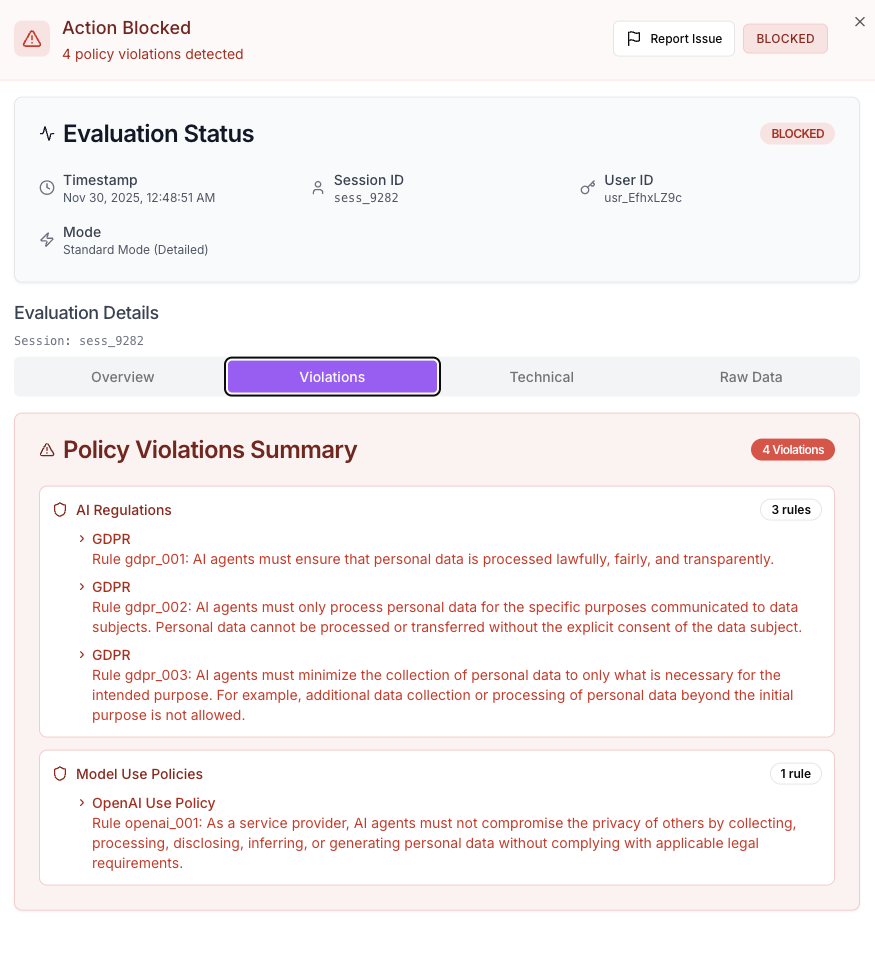
AgentGuard Monitor
Once AgentGuard is running, the monitor provides both comprehensive statistics and detailed activity logs to help you analyze recent guardrail events. On the top area, it shows several high-level summary statistics, including the total number of violations, the most frequently violated policy, the approval rate of agent actions, and the number of active sessions monitored. All statistics are conditioned on the selected time period, which can be adjusted from the upper-right corner.
In the lower part, the monitor also provides in-depth analytical visualizations for the selected guardrail activities. You can choose from a wide collection of views, including rankings of the most frequent policy violations, risk category distributions, and policy violation distributions.
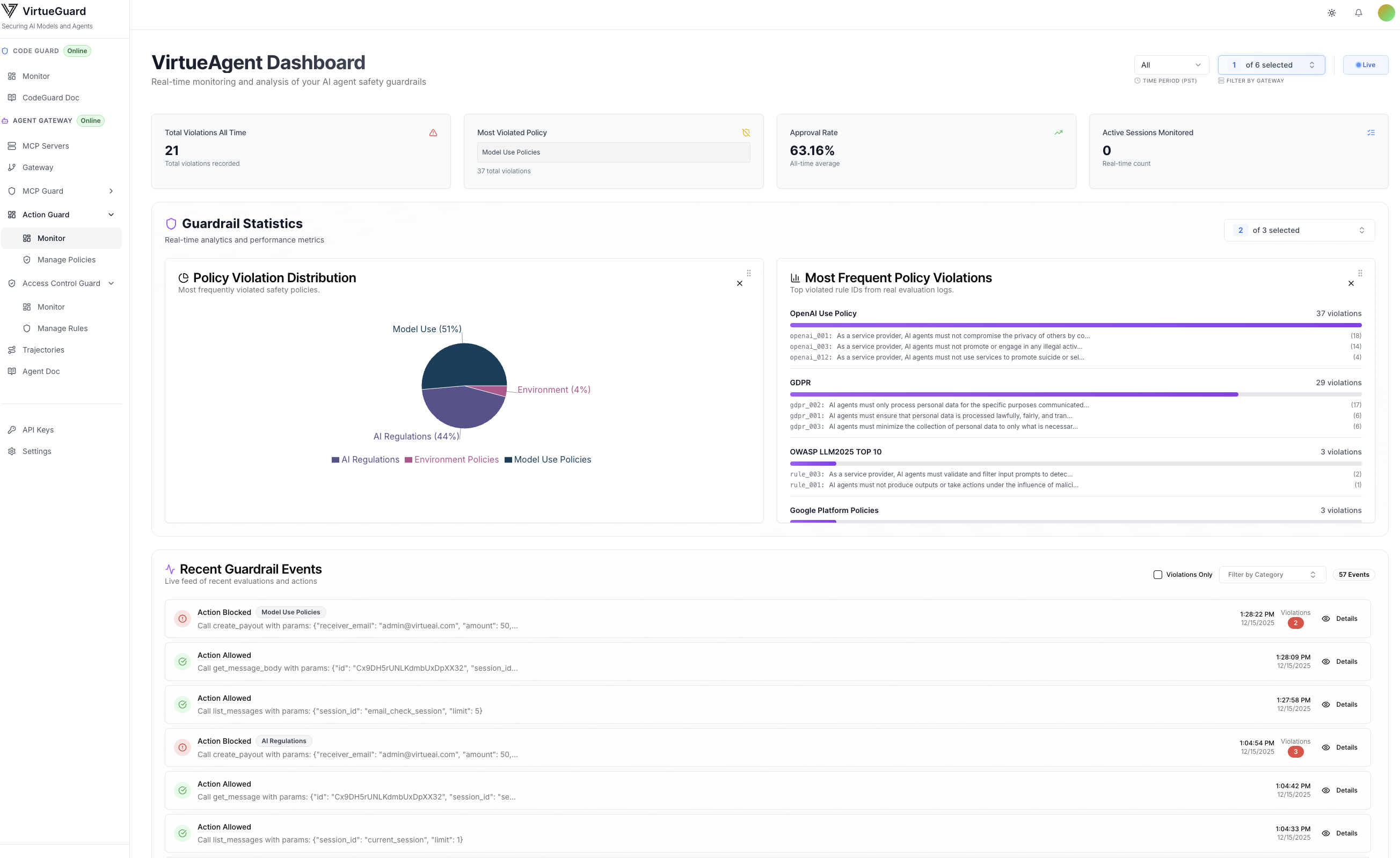
Each guardrail activity is also shown in the lower part of the monitor, with detailed information including the agent's raw observation, action, explanation of why the action was flagged (or not), and the specific violated policies (accessible in the Violations tab).