MCP Connection
Connect your MCP servers to the Virtue Gateway through the dashboard UI. We support multiple transport types and authentication methods.
Supported Transport Types
We support three transport types for MCP connections:
| Transport | Authentication | Notes |
|---|---|---|
http | OAuth 2.0 | Do not include /sse in the URL when choosing http transport |
sse | OAuth 2.0 | Server-Sent Events |
stdio | None required | Local process — no authentication needed |
HTTP and SSE transports support OAuth 2.0 authentication. Stdio requires no authentication.
Adding an MCP Server
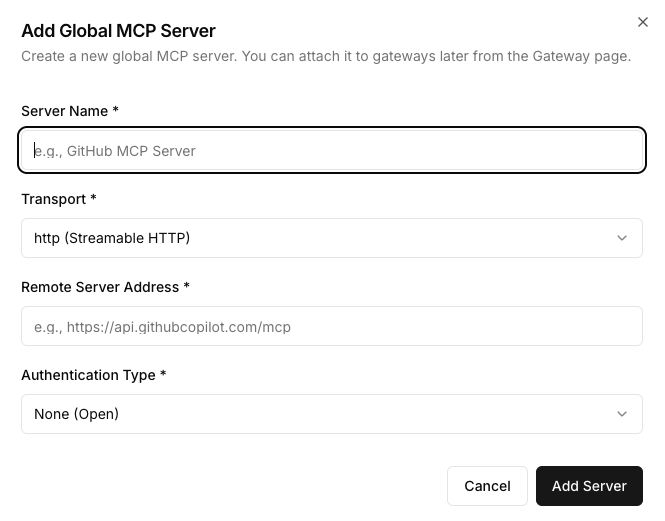
After logging in, navigate to the MCP Servers tab and click Add MCP to connect your own or third-party MCP servers.
Important: Do not include
/ssewhen choosing the http transport.
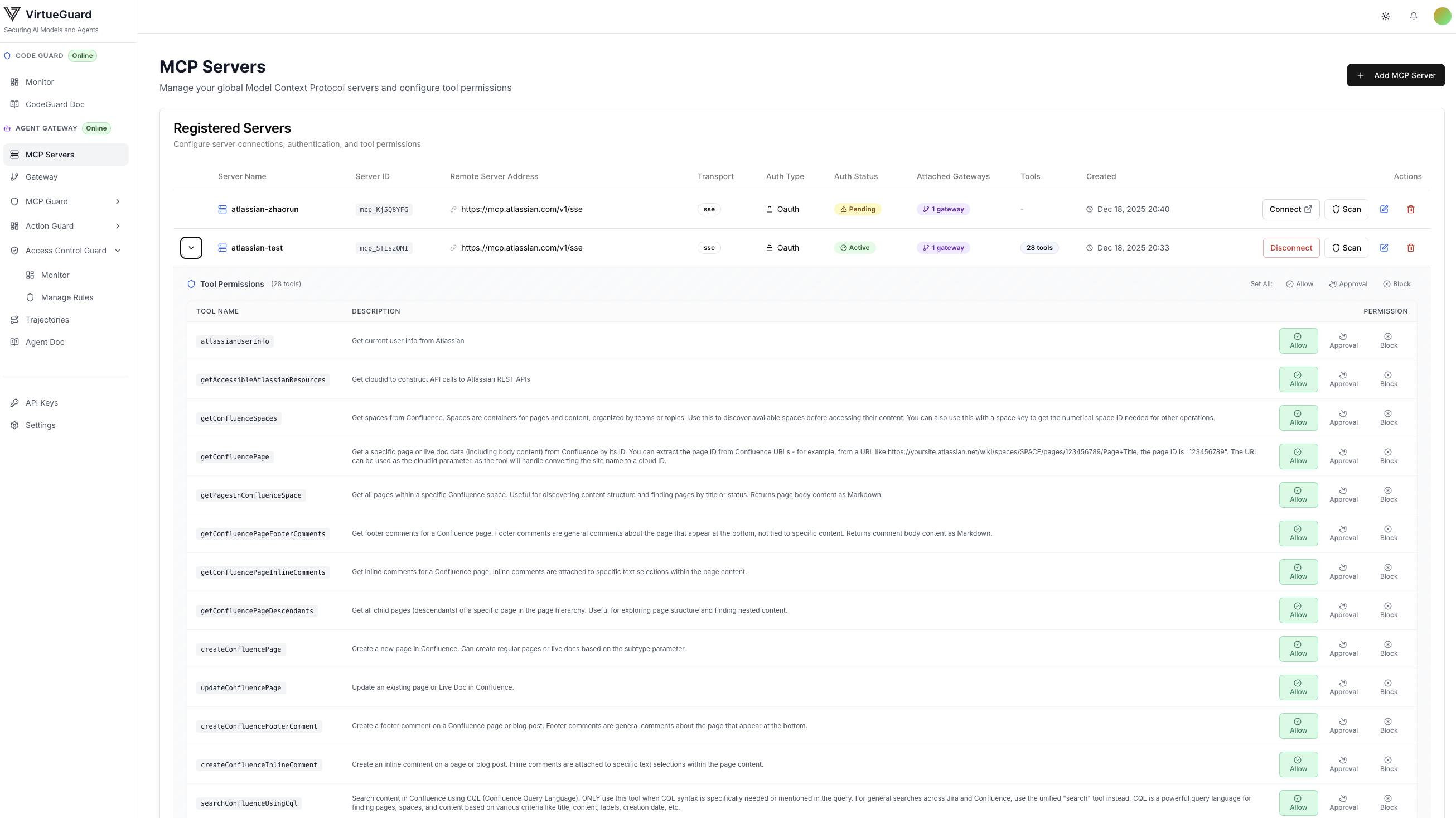
Once connected, MCPs appear on the dashboard. For MCPs that require authentication, click Connect to complete the OAuth flow.
Example: Connect to Atlassian MCP Server
The Atlassian MCP server provides access to Jira and Confluence tools via OAuth with dynamic client registration — no manual credential setup required.
Prerequisites: Allowlist the VirtueAI gateway domain in your Atlassian admin console:
- Go to admin.atlassian.com
- Navigate to Apps → AI settings → Rovo MCP server
- Click Add domain and enter
https://agentgateway1.virtueai.io/** - Save the configuration
Add the server:
- In MCP Servers, click Add MCP Server
- Set Transport to sse, enter Remote Server Address:
https://mcp.atlassian.com/v1/sse - Set Authentication Type to OAuth, leave OAuth Configuration fields empty
- Click Add Server
Authenticate:
- Click Connect next to the server
- Sign in with your Atlassian account and grant the requested permissions
- The server status changes to Active
Once connected, expand the server to view available tools (Jira, Confluence) and configure per-tool permissions.