Gateway Connection
Once your gateway is running, connect your AI clients to it.
Claude
Connect a running gateway to Claude console, Claude Code, or GitHub Copilot (VS Code) — no code required.
Claude Console
Connect directly to the gateway URL through the Claude console's native connector interface.
Important: Do not include
/mcpin the gateway URL when registering in the Claude console.
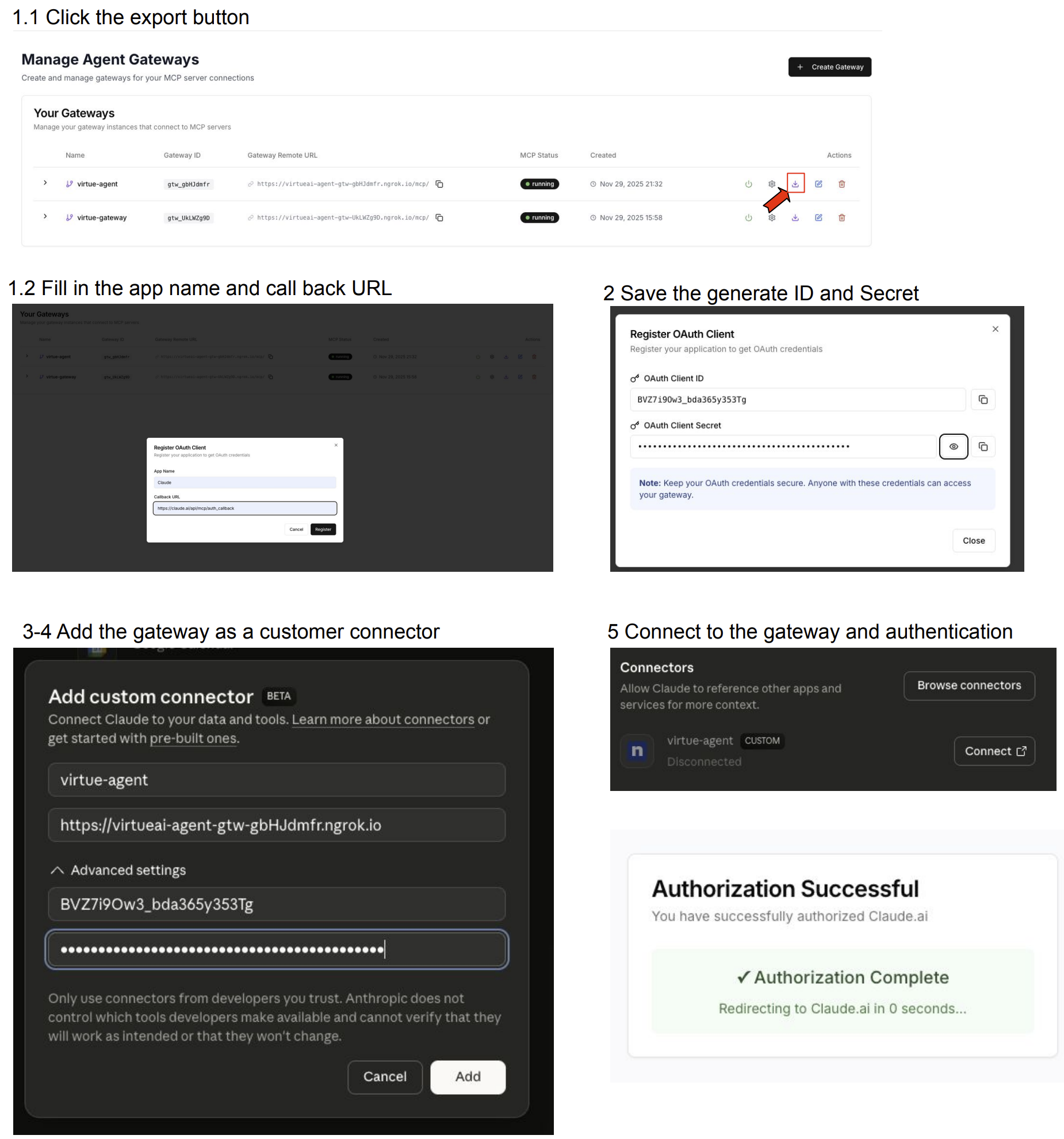
Static Registration
- Click the Export button for your Gateway and enter the app name and callback URL
- Copy the generated
client_id,client_secret, and gateway URL - In the Claude console, go to Connectors → Add Custom Connector
- Enter the gateway name and URL; in Advanced Settings, enter the
client_idandclient_secret - Click Connect — you will be redirected to the VirtueAgent authentication page
- Log in with your username and password to complete the connection
Dynamic Registration
- Copy the URL of the selected Gateway
- In the Claude console, go to Connectors → Add Custom Connector
- Enter the gateway name and URL — no advanced settings needed
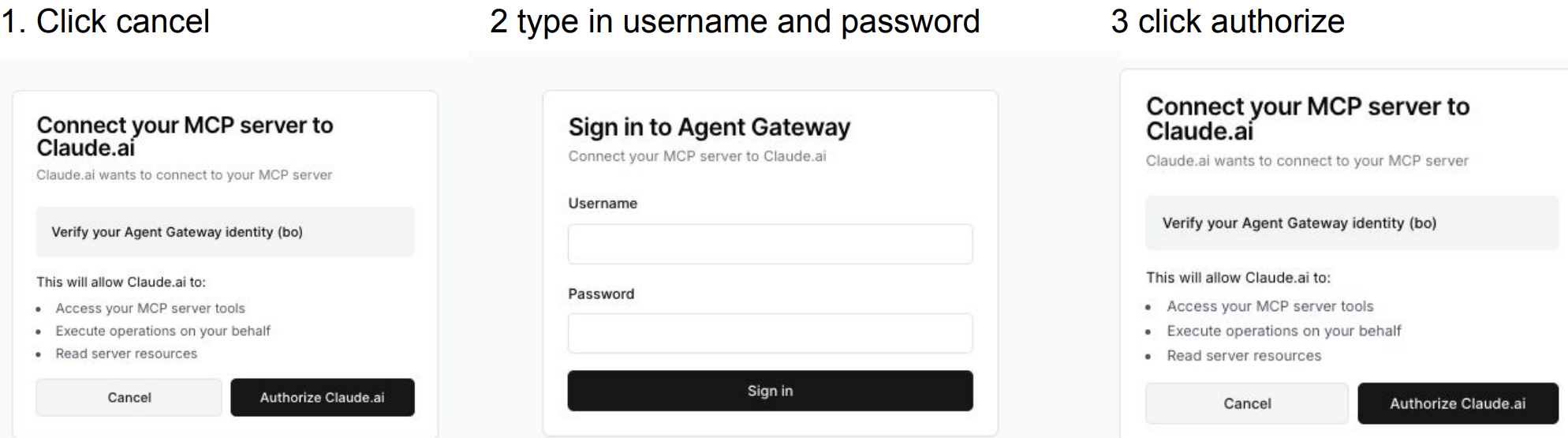
- Click Connect and log in with your username and password
Authentication
On the authentication page, you can log in with username and password or use auto-authentication based on a saved cookie.
Claude Code
Prerequisites:
- Claude Code installed on your machine
- A running Gateway (status: Running)
Steps:
- Copy your Gateway URL from the Gateway tab
- Add the gateway as an MCP server:
claude mcp add --transport http virtueagent-gateway https://your-gateway-url.virtueai.io/mcp
- Start Claude Code — a browser window opens for authentication. Log in with your VirtueAgent credentials.
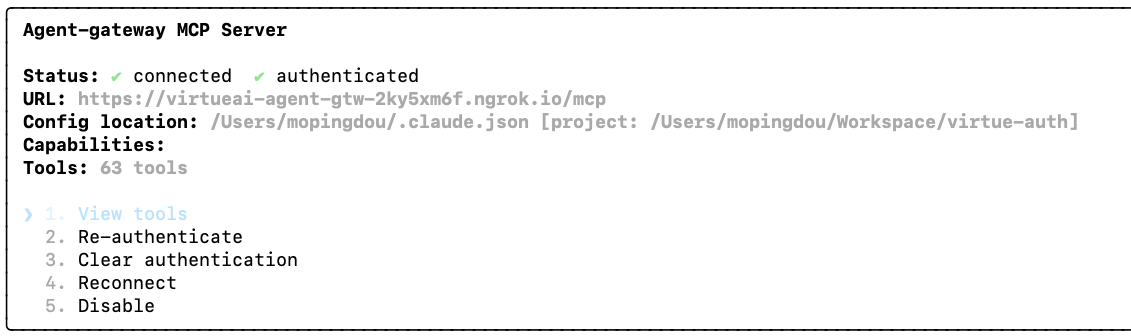
- Run
/mcpinside Claude Code to verify the connection:
GitHub Copilot (VS Code)
Note: VS Code Copilot does not support automatic OAuth flows for MCP servers. Use an API Key instead. See API Key Management to create one.
Prerequisites:
- VS Code 1.99+ with GitHub Copilot extension
- A running Gateway
- An API Key created from the VirtueAgent dashboard
Steps:
- Create an API Key in the VirtueAgent dashboard and copy it
- Copy your Gateway URL
- Create
.vscode/mcp.jsonin your project:
{
  "inputs": [
    {
      "type": "promptString",
      "id": "gateway-api-key",
      "description": "Virtue Gateway API Key",
      "password": true
    }
  ],
  "servers": {
    "virtueagent-gateway": {
      "type": "http",
      "url": "https://your-gateway-url.virtueai.io/mcp",
      "headers": {
        "X-API-Key": "${input:gateway-api-key}"
      }
    }
  }
}
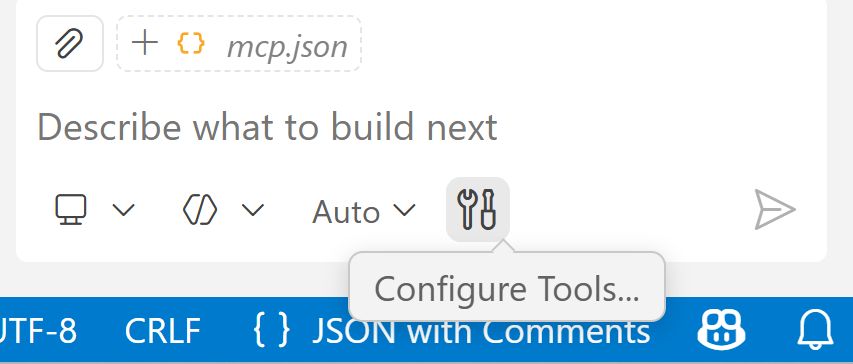
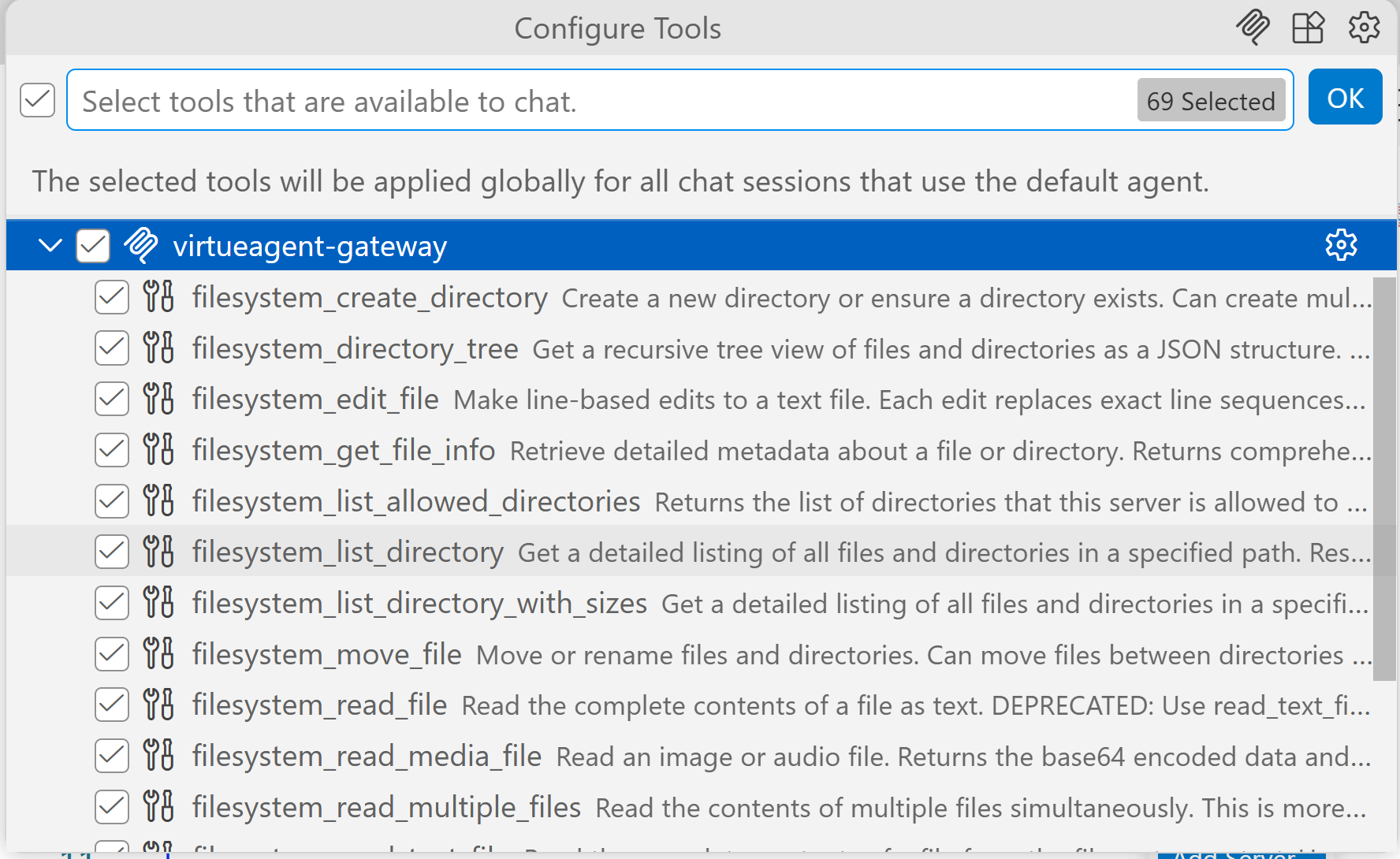
- Open VS Code, enter your API Key when prompted, and click Configure Tool
- Open GitHub Copilot Chat in Agent mode to verify the connection:
OpenAI
Detailed documentation for connecting OpenAI clients to the Virtue Gateway is coming soon.
Gemini
Detailed documentation for connecting Gemini clients to the Virtue Gateway is coming soon.