Connect to Web UI Application
The examples below use the Claude console, but the same steps apply to other web-UI applications such as OpenAI and Gemini.
Claude Console
Connect directly to the gateway URL through the Claude console's native connector interface.
Important: Do not include
/mcpin the gateway URL when registering in the Claude console.
Static Registration
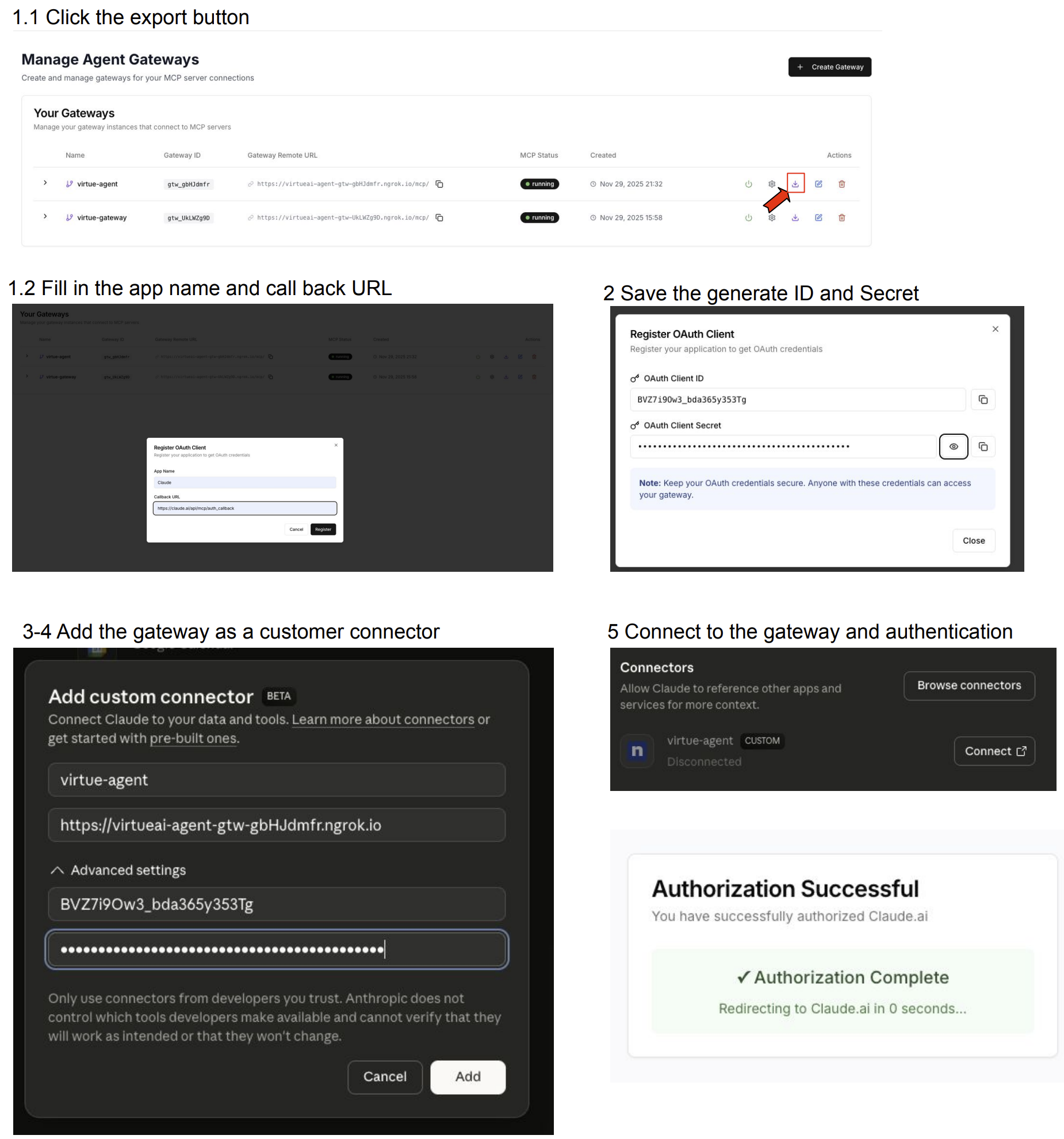
- Click the Export button for your Gateway and enter the app name and callback URL
- Copy the generated
client_id,client_secret, and gateway URL - In the Claude console, go to Connectors → Add Custom Connector
- Enter the gateway name and URL; in Advanced Settings, enter the
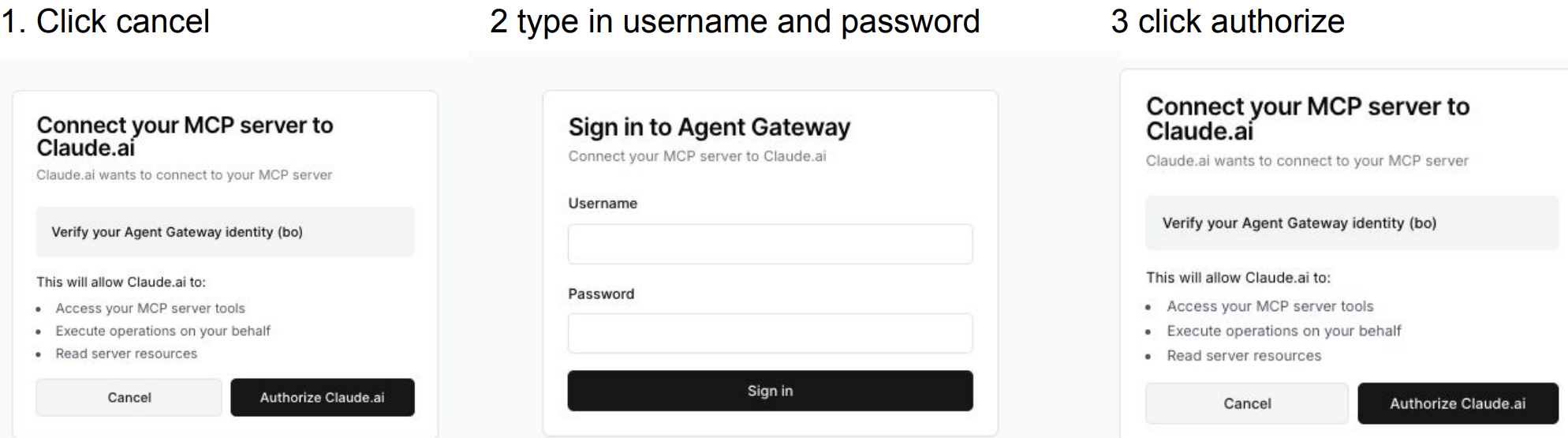
client_idandclient_secret - Click Connect — you will be redirected to the VirtueAgent authentication page
- Log in with your username and password to complete the connection
Dynamic Registration
- Copy the URL of the selected Gateway
- In the Claude console, go to Connectors → Add Custom Connector
- Enter the gateway name and URL — no advanced settings needed
- Click Connect and log in with your username and password
Authentication
On the authentication page, you can log in with username and password or use auto-authentication based on a saved cookie.