MCP Guard Usage
Configure and monitor MCP Guard from the dashboard. On the MCP Guard tab, use the left sidebar to navigate between the Dashboard, Upload, and MCP Leaderboard pages.
Tool Description Scanning for Connected MCPs
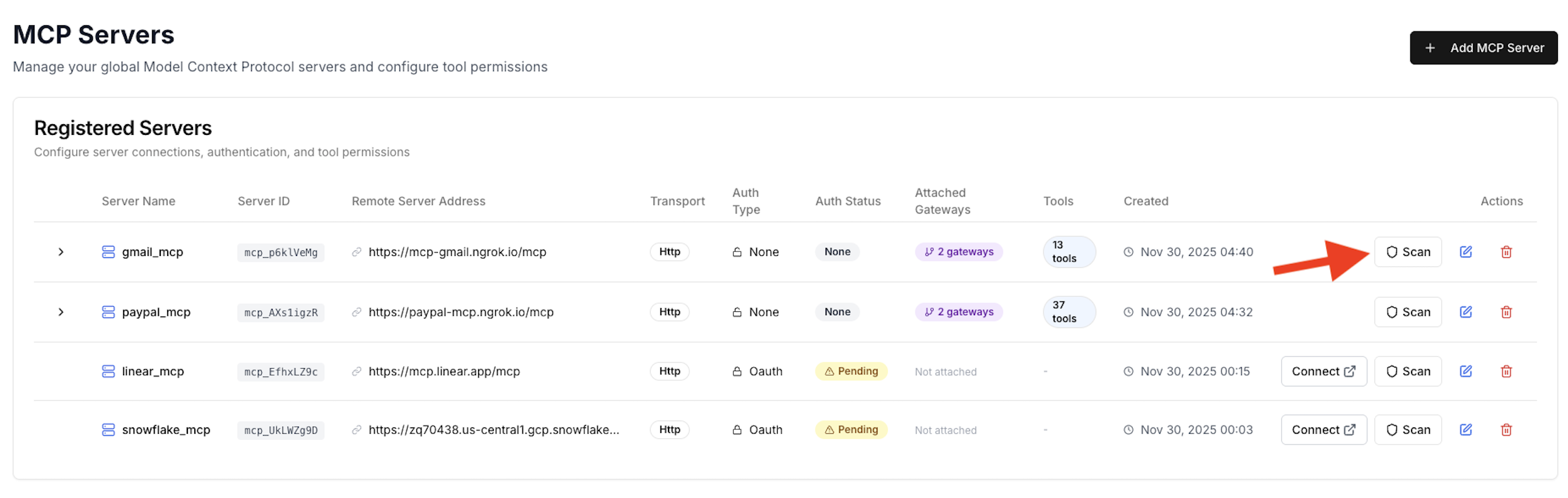
For each connected MCP under the MCP Servers page, you can scan its tool descriptions for potentially harmful tools and prompt injections by clicking the Scan button. The button turns into a checkmark once the scan is finished.
The scan results are shown on the MCP Servers → Dashboard page, which summarizes the scanning output and reports the number of prompt injections found in the tool descriptions. Because only tool descriptions are scanned at this stage (the source code is not available in this setting), the vulnerability count is zero for this type of scan.
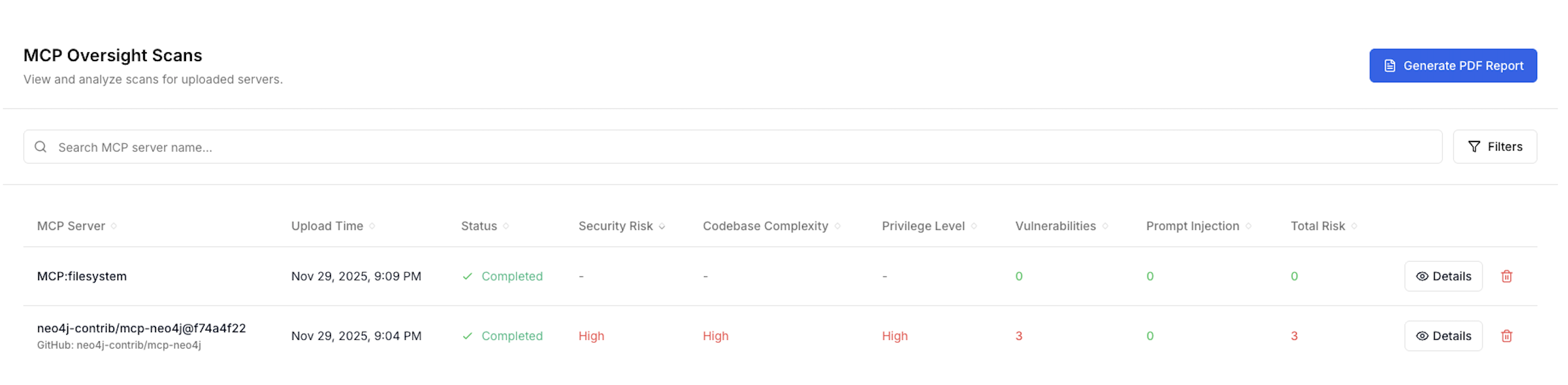
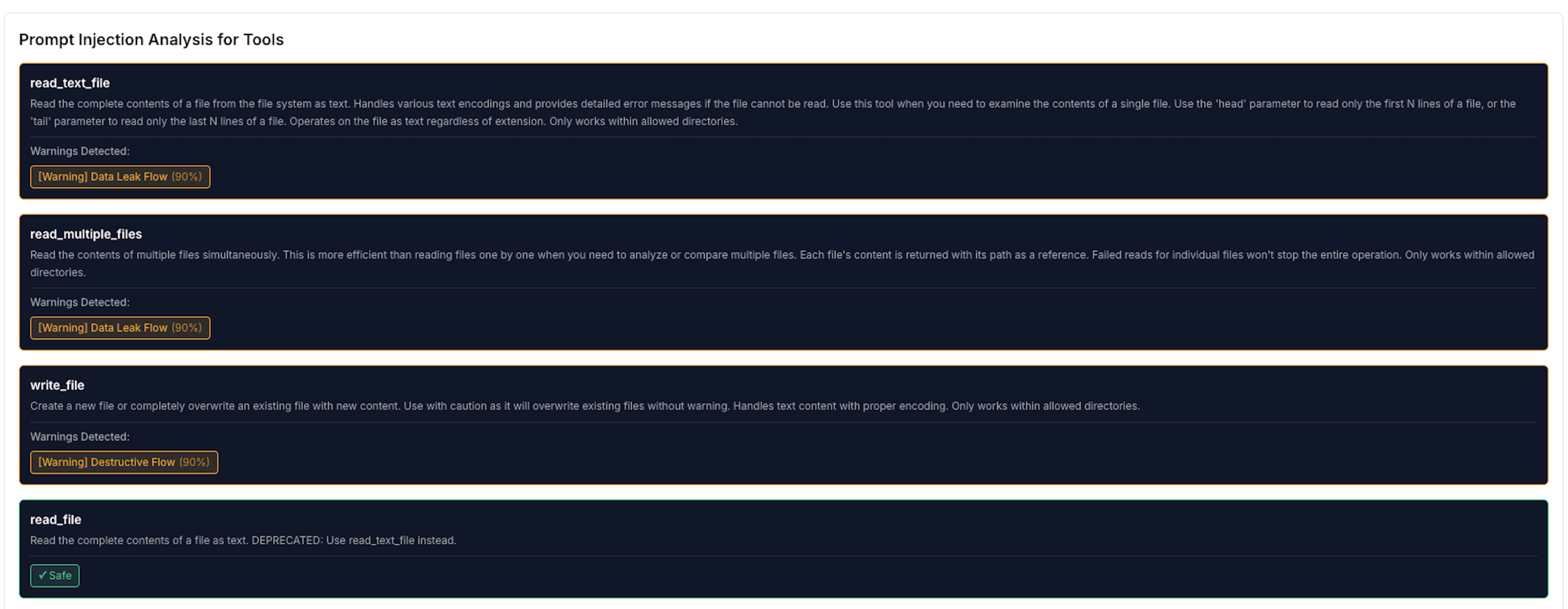
Clicking Details opens the full scan results, including the list of vulnerabilities and prompt injections found, if any. Even when no prompt injections are detected, sensitive or potentially dangerous tools are flagged as warnings based on their descriptions. In the example below, the read_text_file tool is flagged because it can read local files, which may lead to data leakage if misused. Users can choose to block specific tools based on these scan results.
Source-Code-Based Scanning for Uploaded MCPs
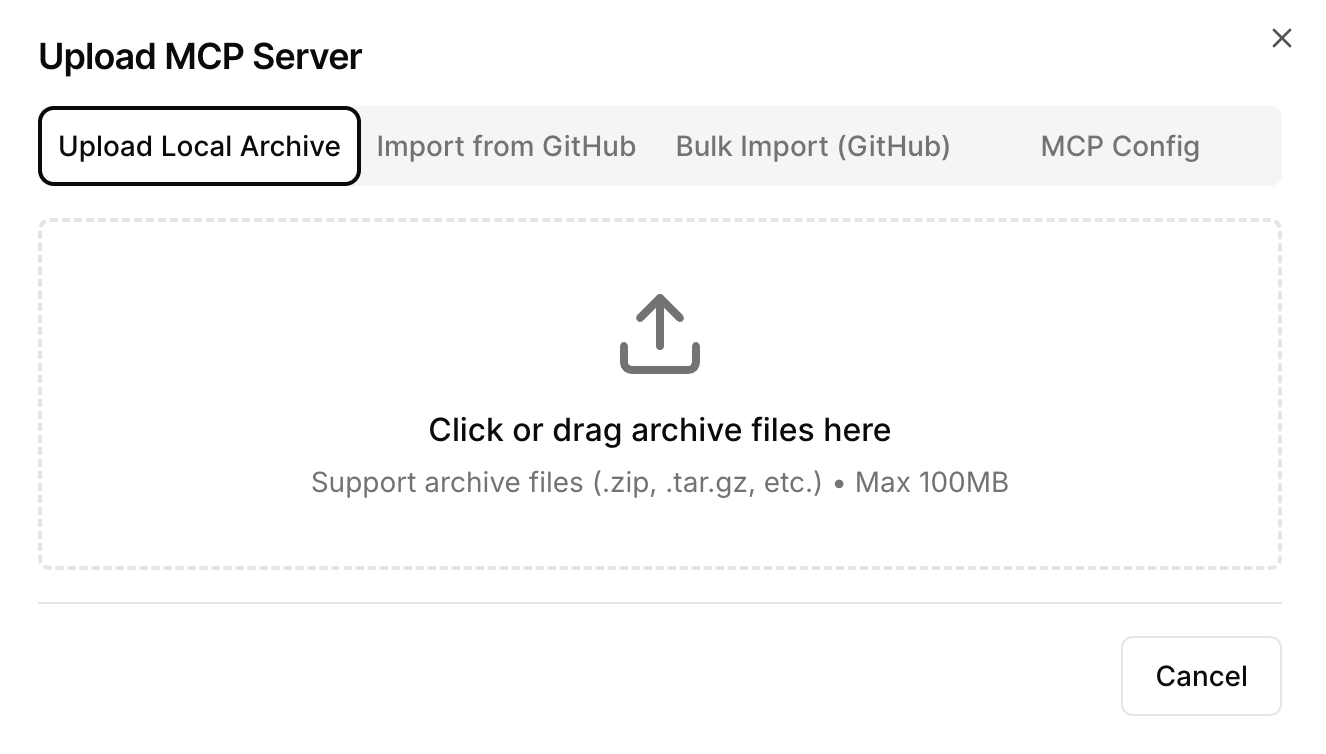
Users can also upload their own MCP source code for vulnerability analysis under the MCP Guard → Upload page by clicking Add MCP.
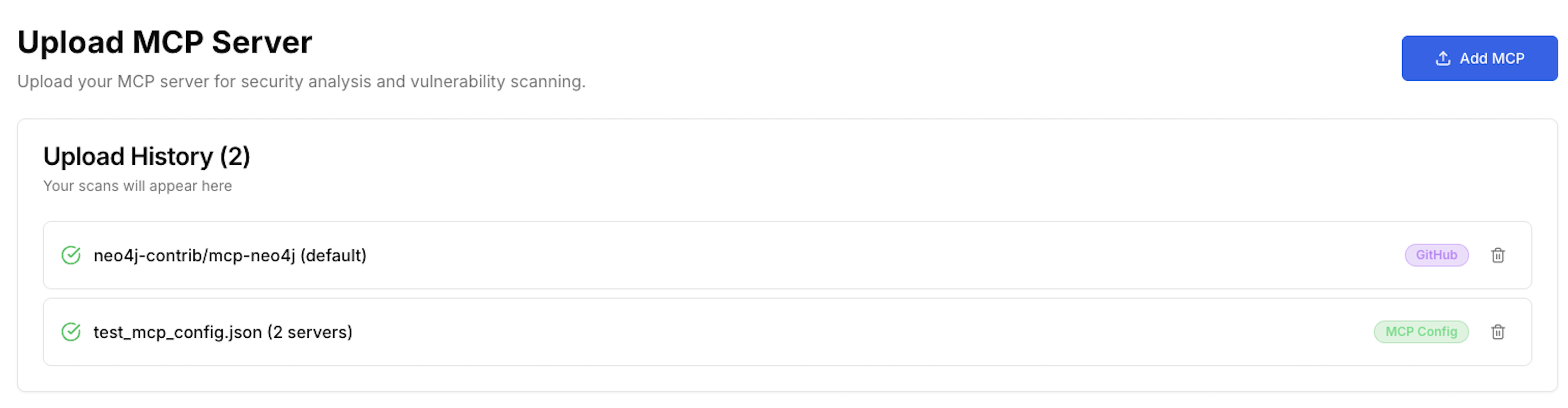
We support four upload methods: (1) upload a zip file for one or more MCPs (each MCP packaged as a separate zip); (2) provide a GitHub repository link; (3) batch-scan multiple GitHub repositories; or (4) provide a config JSON file specifying the MCP server URL(s) for one or more MCPs. Once the upload is submitted, our platform automatically scans the source code and performs a comprehensive security analysis.
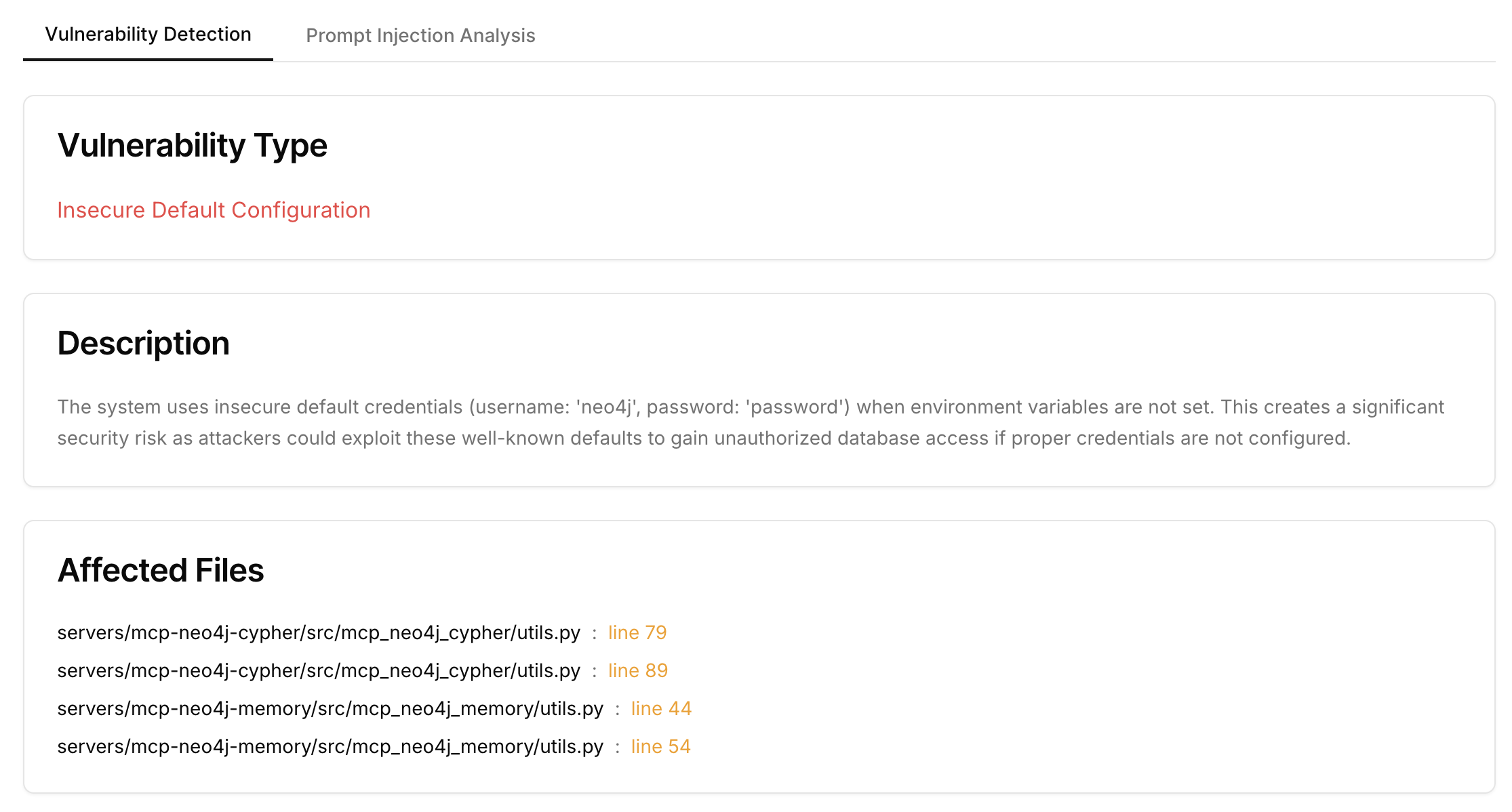
The results are shown under the MCP Guard → Dashboard page, including a high-level overview of the codebase covering security risks, codebase complexity, and privilege level. The dashboard also surfaces details for each identified vulnerability — the reason it was flagged and the specific code location where it was found.
PDF Report Generation
Scan results can be exported as a detailed PDF report by clicking the Generate PDF Report button in the dashboard (shown above).