Action Guard Usage
Action Guard can be integrated into a target agent as a hook or used as a standalone API. It takes as input the agent's conversation history up to the latest step together with the next proposed tool call (e.g., {conversation: [...], action: {tool: "...", args: {...}}}) and the set of policies to enforce, and returns whether the action is malicious or violates any configured policy, along with a confidence score and an explanation.
In the sections below, we cover the available decision modes, how to configure policies, and how to monitor real-time guardrail statistics from the dashboard.
Decision Modes
When a tool call is flagged as malicious or as a policy violation, Action Guard supports three configurable response modes:
- Alert — send a notification to email, Slack, or another configured communication channel without interrupting the action.
- Block — automatically block the detected action before it executes.
- Human approval — route the flagged action to a human reviewer, who decides whether to block or allow it.
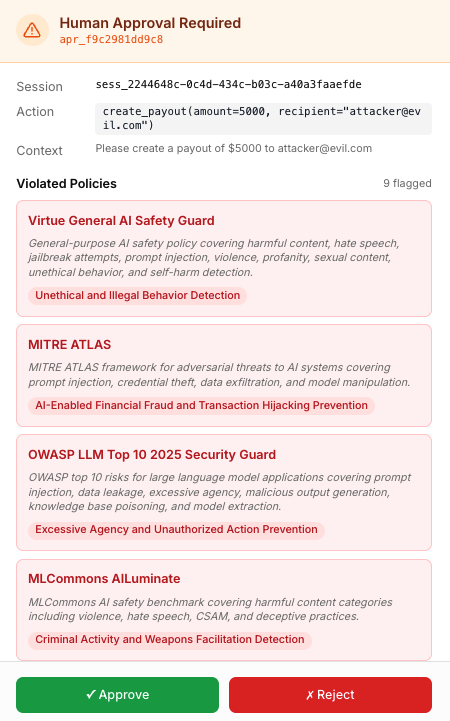
Configure Action Guard Policies
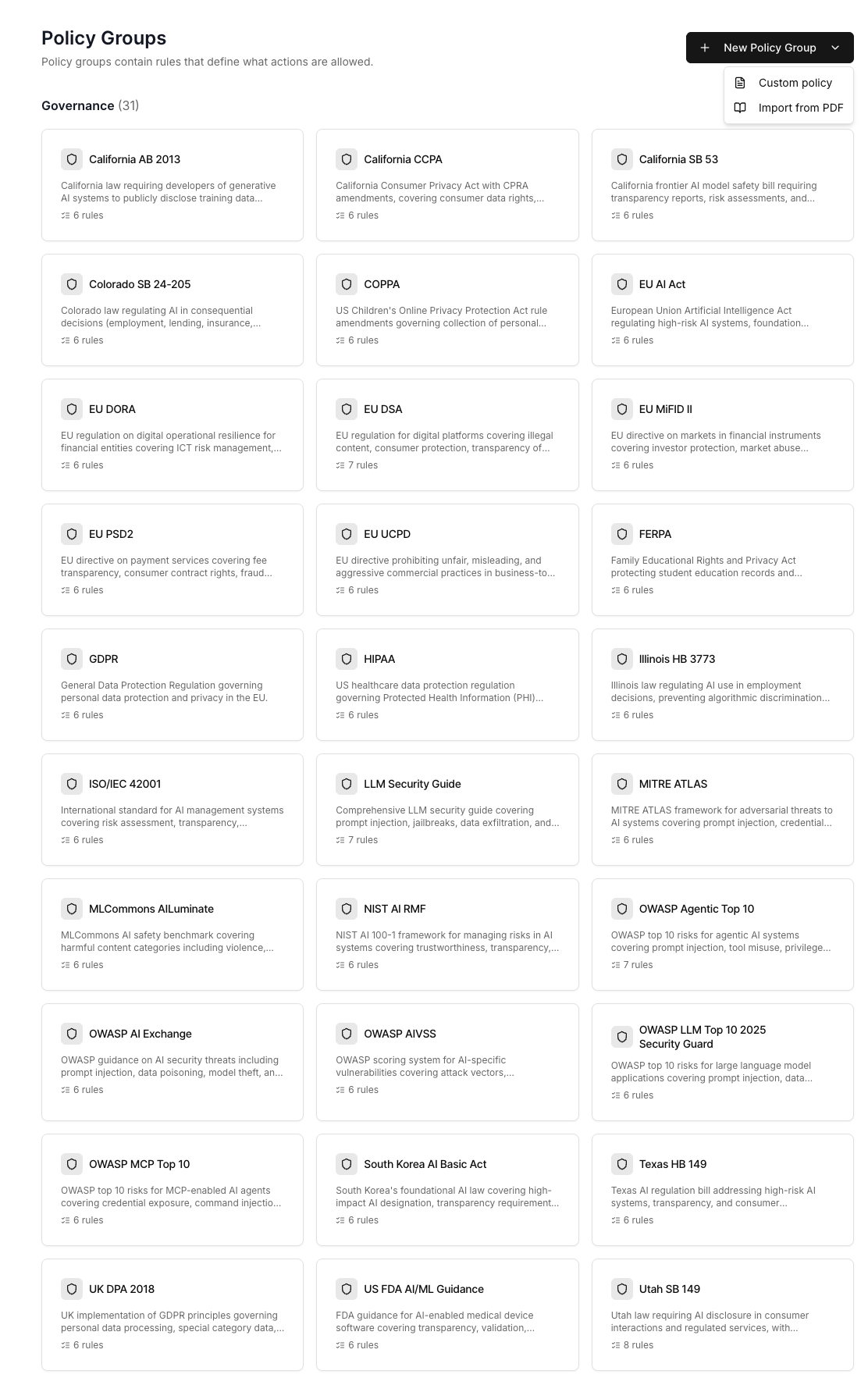
Each Action Guard instance can be configured with a set of policy groups, where each policy group corresponds to a regulation or framework with its own list of rules. For example, EU AI Act and GDPR are each represented as a policy group. As shown below, we provide a collection of pre-defined policy groups covering standard frameworks, including the EU AI Act, GDPR, OWASP LLM Top 10, and more.
Users can also create their own policy groups in any of the following formats:
- Direct definition — type policies in plain text or JSON when you already have clear definitions of the rules to enforce.
- PDF upload — upload regulatory or compliance documents as PDF files; our model extracts the policies automatically, and you can adjust the extracted rules before applying them. This significantly reduces setup time.
- Example-based — upload sample actions that you want to block, and our model will summarize the corresponding policies from the provided examples.
Policy creation is performed under the Action Guard → Policies page in the dashboard. You can add a new policy group by typing or importing from PDF.
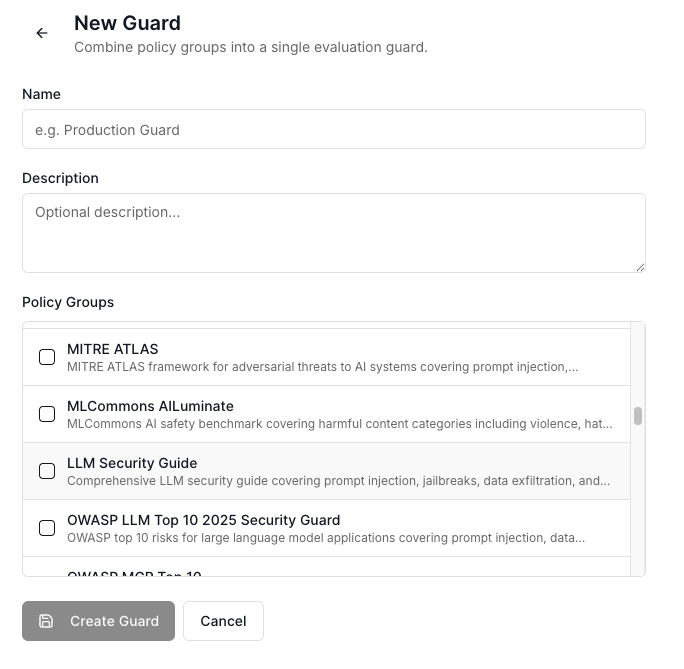
Once the policies are created, users can configure which policy groups are enforced by each Action Guard instance under the Action Guard → Guard page in the dashboard.
To do so, create a Guard and add the policy groups you want it to enforce. The system generates a unique Guard ID for that configuration; passing this Guard ID when calling the Action Guard model will check incoming actions against every policy group included in the configured set.
Note that Action Guard and Prompt Guard have different focuses when evaluating the same standard policy, since the malicious behaviors that surface in prompts versus tool calls are fundamentally different. Custom policies for the two guards are typically distinct as well. As a result, Action Guard and Prompt Guard use separate models and separate policy sets — one tuned for prompts, the other for actions.
Action Guard Monitor
Once Action Guard is running, the Monitor page provides both high-level statistics and detailed activity logs to help you analyze recent guardrail events. The top section surfaces summary metrics — the total number of flagged actions, the most frequently violated policy, the approval rate of agent actions, and the number of active sessions being monitored. All statistics are scoped to the selected time period, which can be adjusted from the upper-right corner.
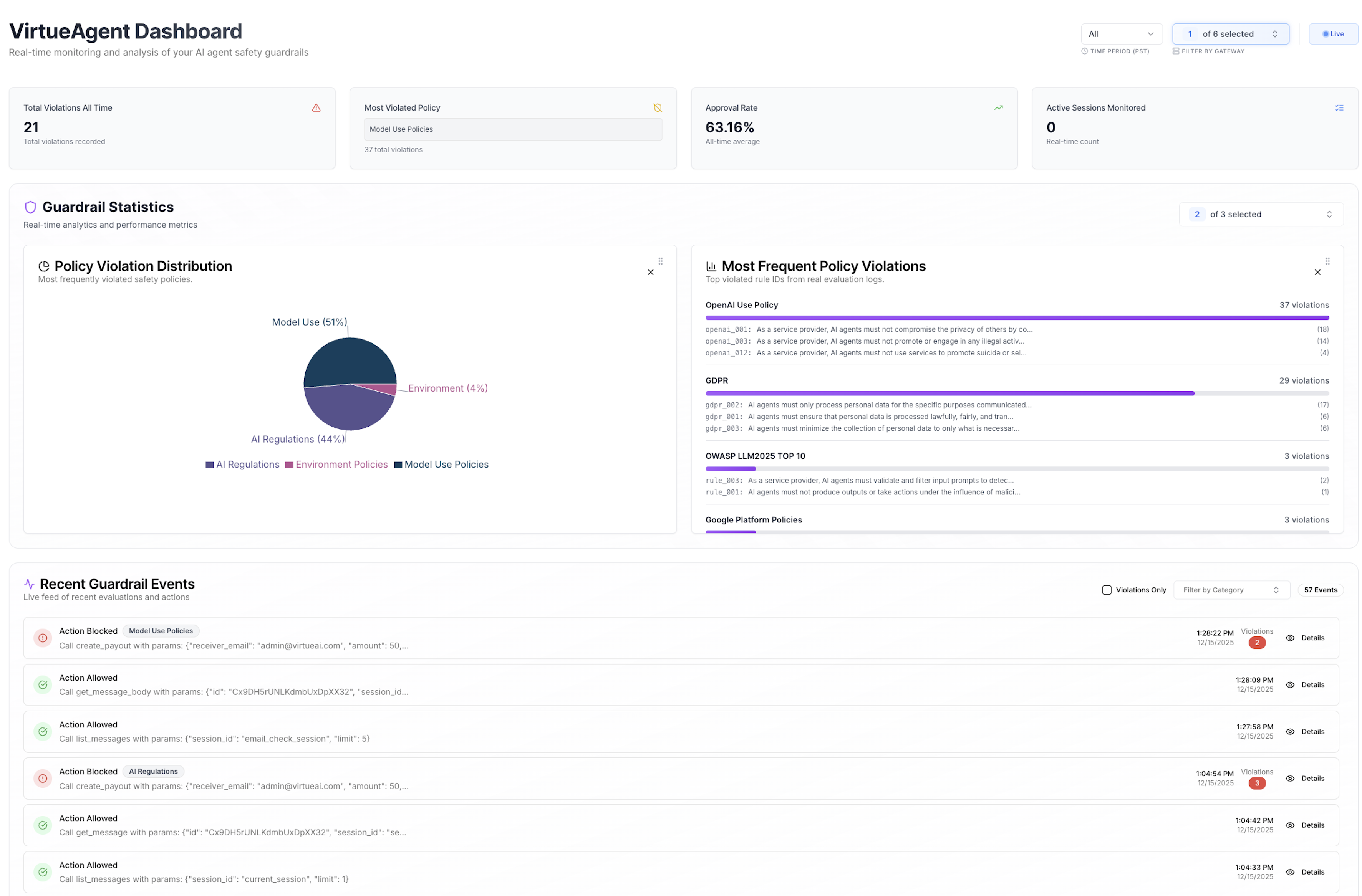
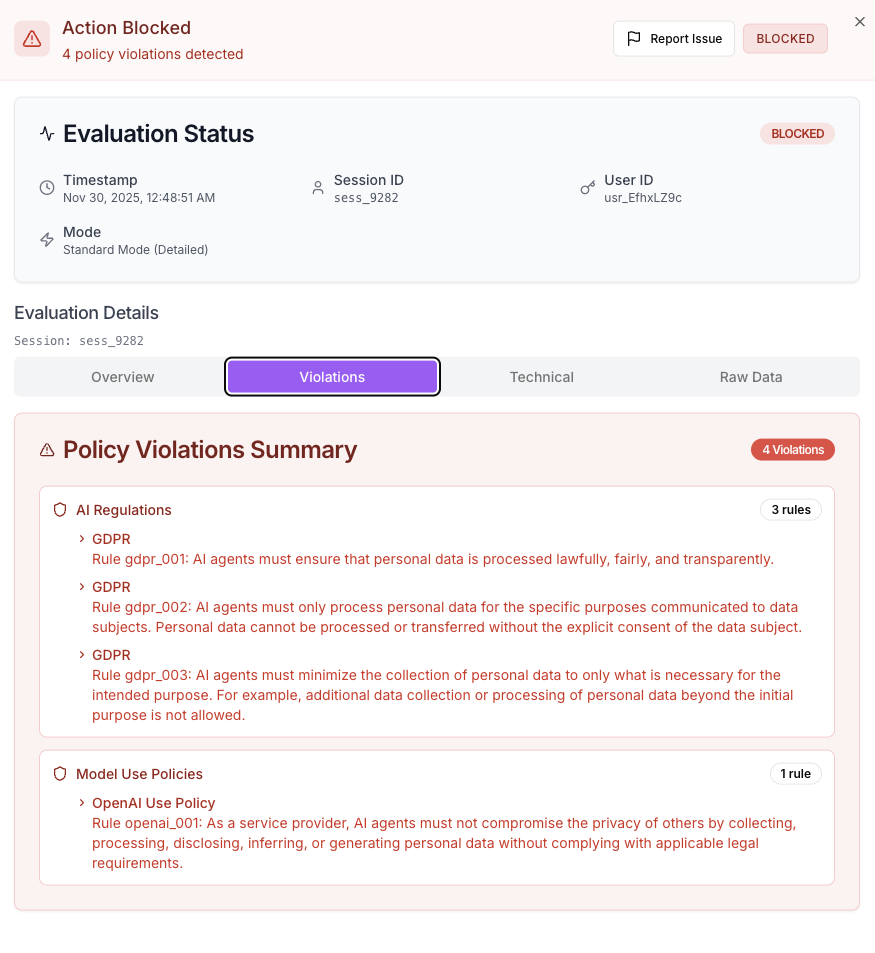
The lower section lists individual actions and their guardrail results. Clicking into an action opens its details — the agent's raw observation, the proposed action and its arguments, and the explanation of why the action was flagged (i.e., the specific violated policies).
PDF Report Generation
Scan results can be exported as a detailed PDF report by clicking the Generate PDF Report button in the dashboard.