VirtueGuard-Code Local Setup Tutorial
This guide walks you through deploying VirtueGuard-Code locally using Docker with GPU support.
Prerequisites
Before you begin, ensure you have the following installed on your system:
- Docker installed and running
- CUDA installed with GPU support enabled
Setup
1. Pull the Docker Image
Pull the VirtueGuard-Code backend image from the container registry:
docker pull us-west1-docker.pkg.dev/customer-docker-virtueai/customers-poc/virtueguard_code_backend:latest
2. Tag the Image
Tag the image for easier reference:
docker tag us-west1-docker.pkg.dev/customer-docker-virtueai/customers-poc/virtueguard_code_backend:latest virtueguard_code_backend:latest
3. Run the Container
Start the container with GPU support:
docker run -d \
  --name virtueguard_code_backend \
  --gpus all \
  -p 4409:4409 \
  -e ANTHROPIC_API_KEY="your_apikey" \
  -e OPENAI_API_KEY="your_apikey" \
  -e JWT_SECRET_KEY="NmCxDRTwSbaABkkb2b4y4UW46S8lZf9R" \
  virtueguard_code_backend
Note:
ANTHROPIC_API_KEYandOPENAI_API_KEYare optional environment variables. They are only required if you want to use Claude or GPT models for comparison purposes.
4. Wait for Model Deployment
Wait approximately 20 minutes for the model to download and deploy. The backend needs time to initialize the vulnerability detection model.
5. Get the Default API Key
Once the container is running, retrieve your API key from the logs:
docker logs -f virtueguard_code_backend
You should see output similar to this:
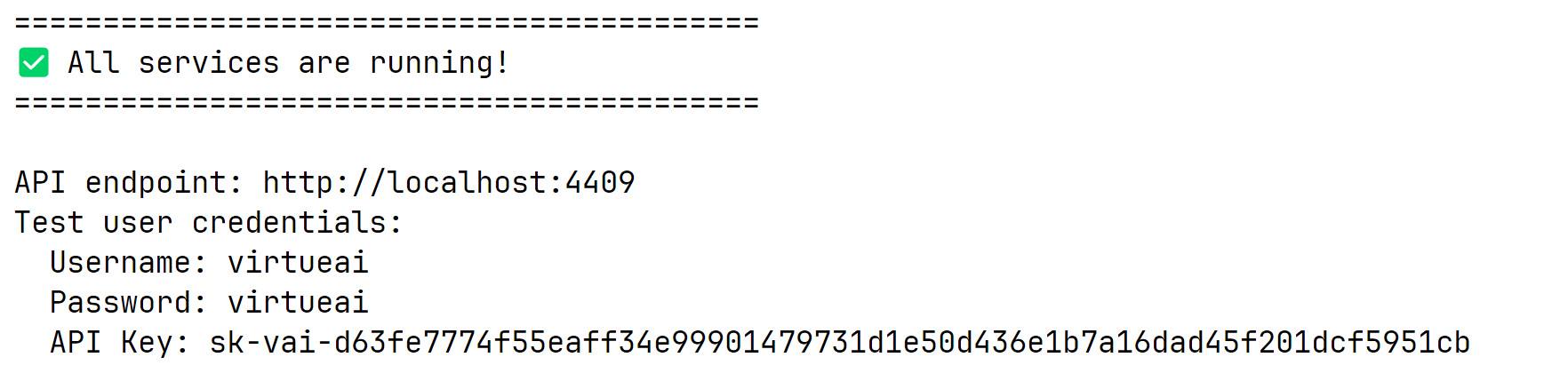
Copy the API key — you will need it for the next step.
Usage
1. Install the Extension
Install the VirtueGuard-Code extension from the marketplace of VS Code, Cursor, or Windsurf.
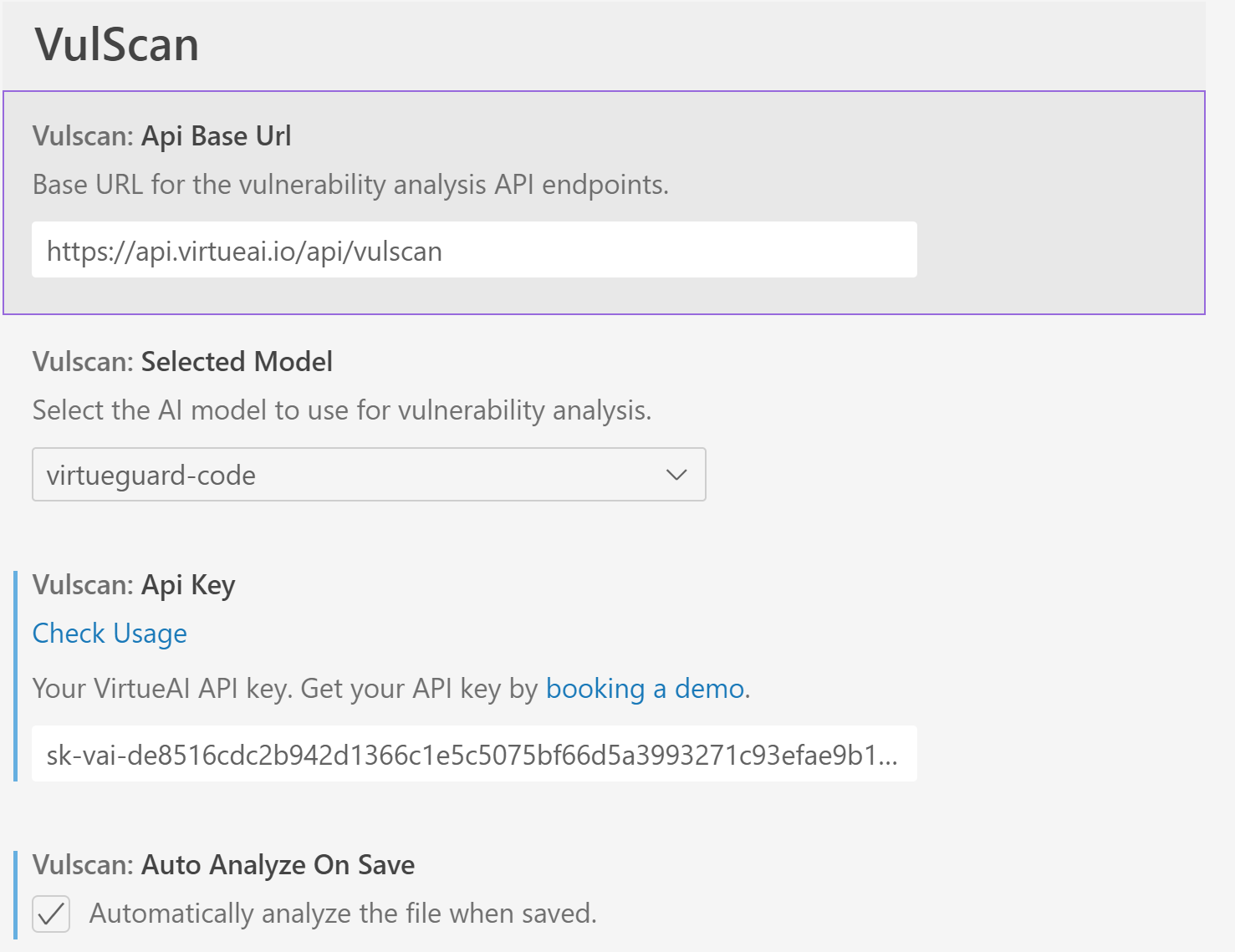
2. Configure the Settings
Open the extension settings and make the following changes:

- API Base URL: Update to
http://localhost:4409(this points to your local Docker container) - API Key: Paste the API key you copied from the Docker logs (e.g.,
sk-vai-d63fe7774f55eaff34e99901479731d1e50d436e1b7a16dad45f201dcf5951cb)
3. Start Scanning
You can now start scanning code with the local model! Follow the usage instructions in the VirtueGuard-Code Dashboard Tutorial for details on:
- Autoscan Mode: Automatic vulnerability detection on file save
- Manual Scan Mode: Targeted analysis of selected code sections
Troubleshooting
API connection issues
Verify the container is running and the port is accessible:
docker ps
curl http://localhost:4409/health
Model not loading
Check the container logs for errors:
docker logs virtueguard_code_backend