Code Guard Dashboard and Plugin Tutorial
Comprehensive setup and usage guide for using Code Guard in VS Code-based IDE extension
Overview
Virtue CodeGuard automatically identifies vulnerabilities in AI-generated code. It is powered by our proprietary small language model, which is both more effective and more efficient than state-of-the-art LLMs at detecting security flaws. We design the Code Guard to cover the most critical vulnerabilities across mainstream programming languages: Python, C/C++, and Java. The default CWEs covered are listed below. Our Code Guard also supports customized code risks categories and policies per request.
Python
CWE-74, CWE-78, CWE-89, CWE-94, CWE-200, CWE-295, CWE-327, CWE-352, CWE-367, CWE-400, CWE-502, CWE-611, CWE-863, CWE-915, CWE-918
C/C++
CWE-22, CWE-23, CWE-89, CWE-94, CWE-121, CWE-134, CWE-176, CWE-191, CWE-287, CWE-307, CWE-319, CWE-327, CWE-338, CWE-352, CWE-367, CWE-369, CWE-400, CWE-416, CWE-457, CWE-502, CWE-758, CWE-761, CWE-798, CWE-843, CWE-862, CWE-863
Java
CWE-369, CWE-400, CWE-78, CWE-319, CWE-191, CWE-23, CWE-89, CWE-90, CWE-190, CWE-476, CWE-327, CWE-134, CWE-601, CWE-526
Setup
1. Install the Extension
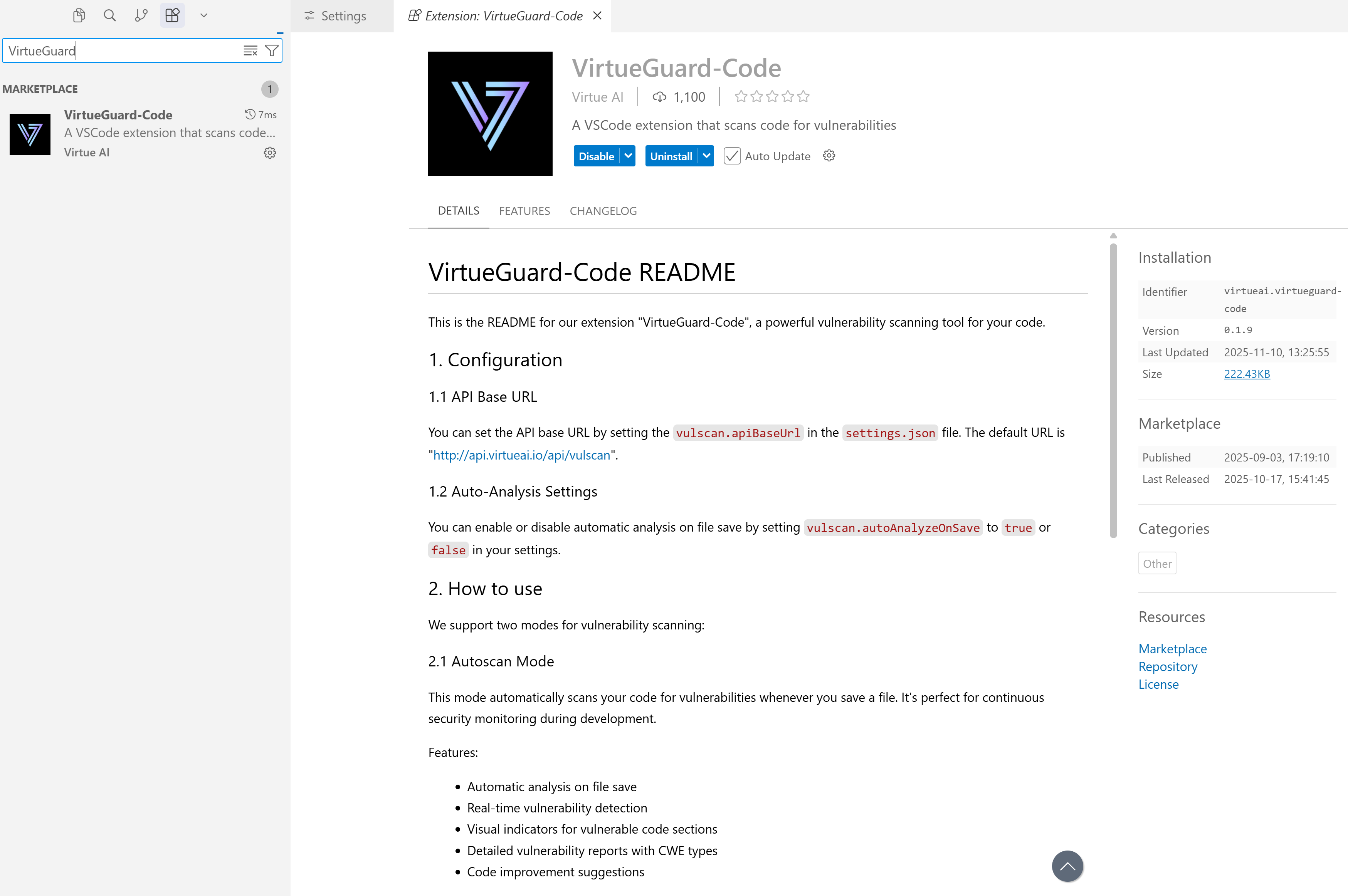
Install VirtueGuard-Code extension from the marketplace of VS Code, Cursor, or Windsurf (See the Figure below).
2. Get Your API Key
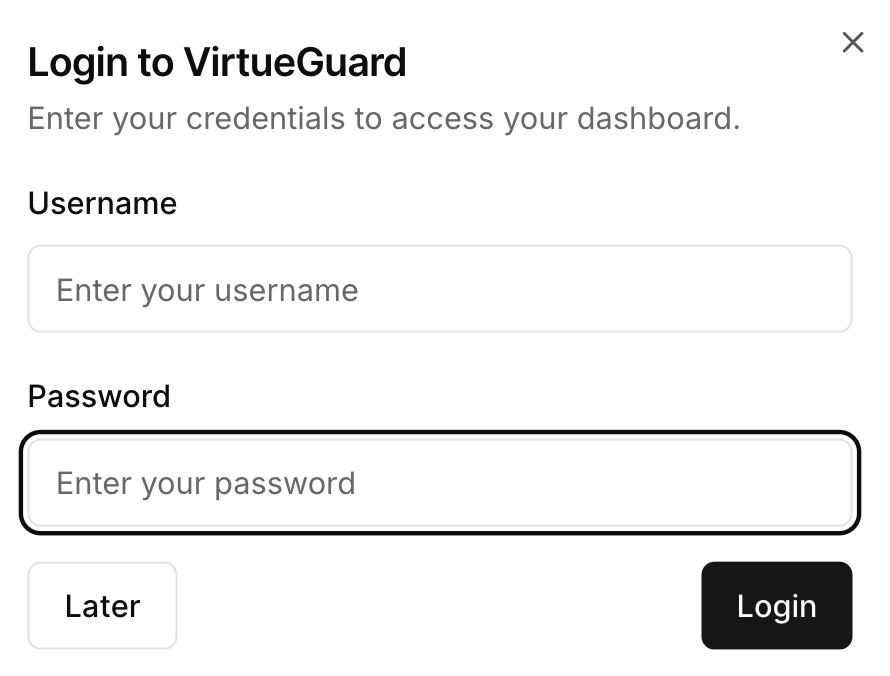
Log into the VirtueGuard platform with your user name and password.
Navigate to the API Keys section located in the bottom-left corner of the dashboard sidebar. Click on API Keys to open the API key management page (shown below).
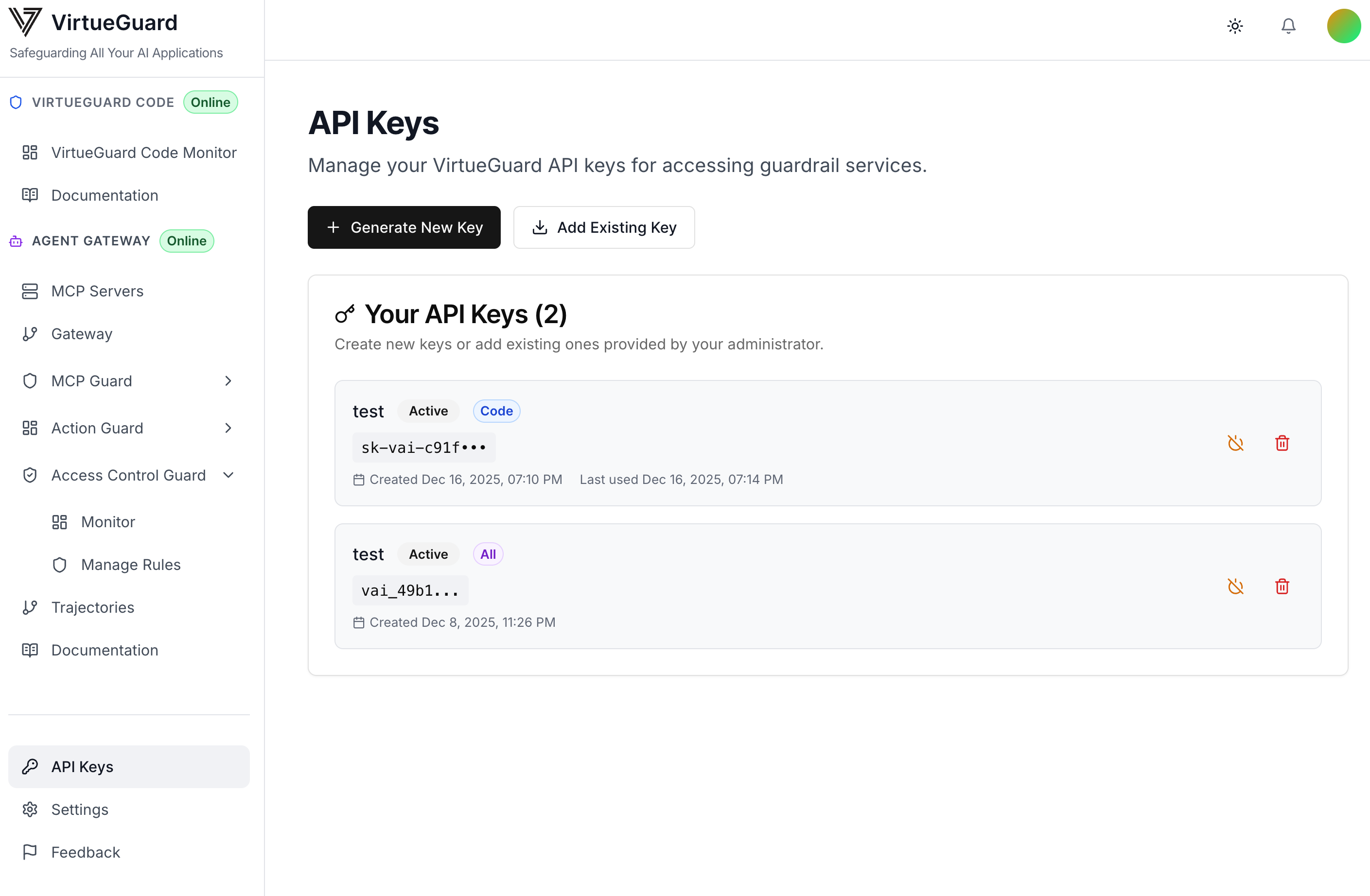
Click Generate New Key to create a new API key and select the scope as code guard (virtueguard code). Important: Copy and save your API key immediately — it will only be shown once and cannot be retrieved later.
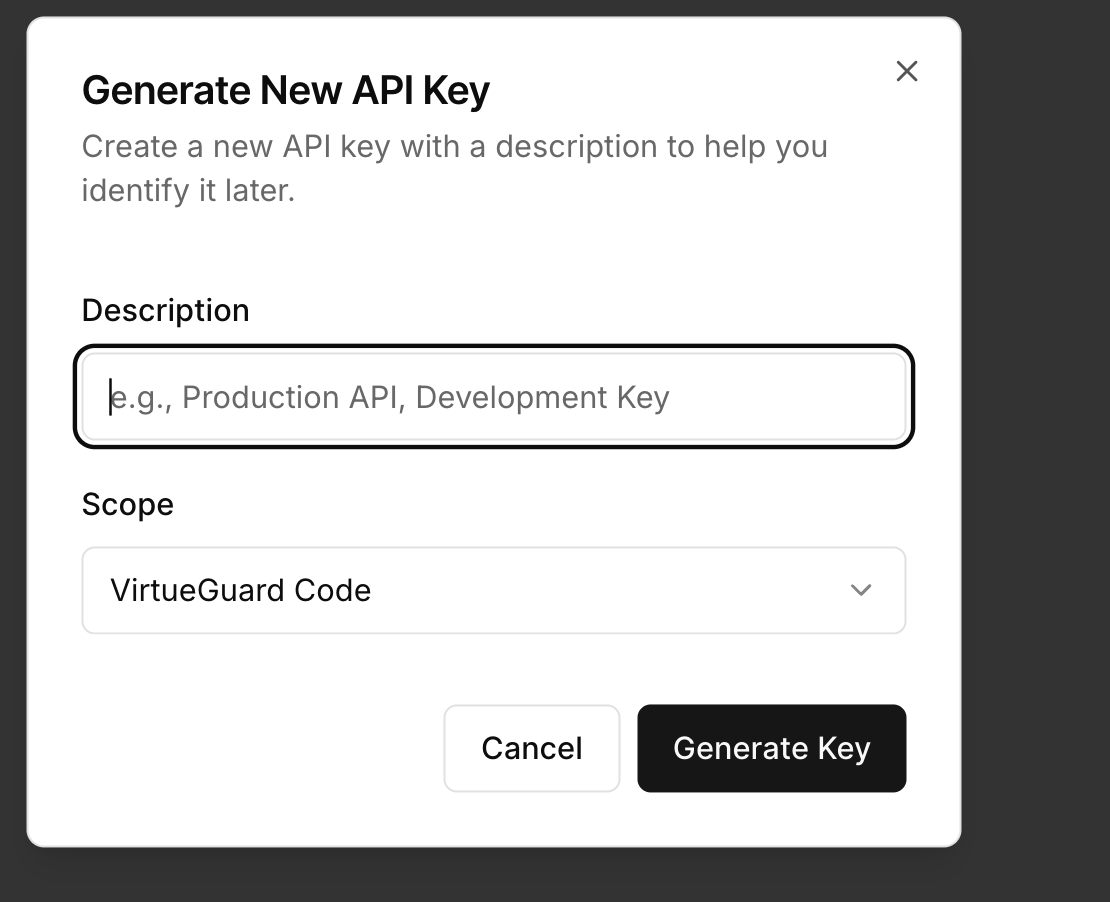
3. Configure the Settings
Go back to the IDE plugin setting and configure the setting as follows:
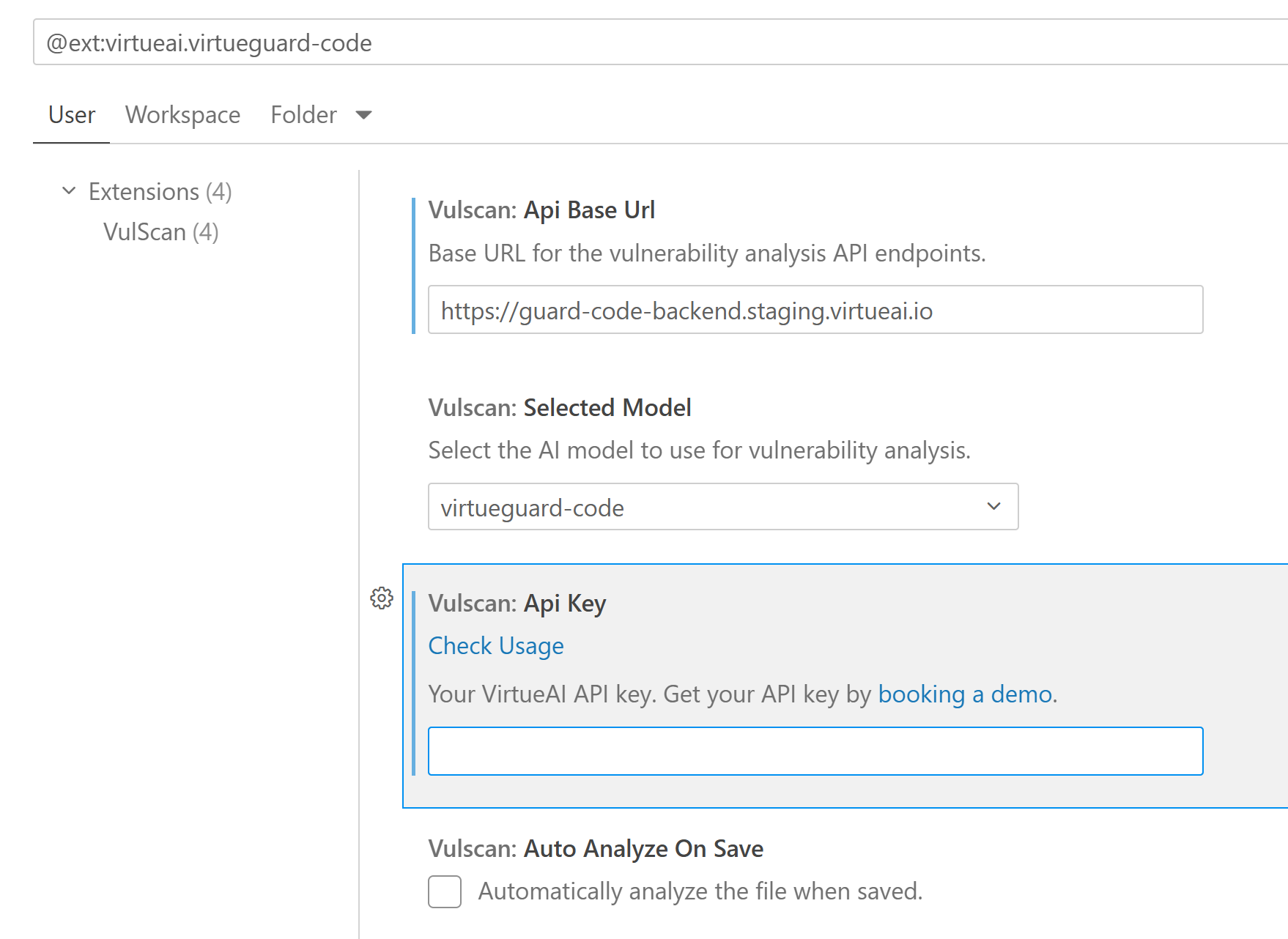
- Confirm the
vulscan.apiBaseUrlishttps://guard-code-backend.staging.virtueai.io - Fill in your API Key (should start with
sk-vai-) - Each API key has a token limit of 500,000 tokens; you can check the API key usage
- By default, select the checkbox of
vulscan.autoAnalyzeOnSave
Auto-Analysis Settings: You can enable or disable automatic analysis on file save by checking or unchecking
vulscan.autoAnalyzeOnSavein your settings.
Model Selection: By default, we use our virtueguard-code model. You can also select other models based on your preference, including
claude-4-sonnetandgpt-4.1. Note that these two commercial models are for comparison purposes, where we only provides a small amount of credits.
How to Use
We support two modes for vulnerability scanning
1. Autoscan Mode
This mode automatically scans your code for vulnerabilities whenever you save a file. It's perfect for continuous security monitoring during development.
Features:
- Automatic analysis on file save
- Real-time vulnerability detection
- Visual indicators for vulnerable code sections
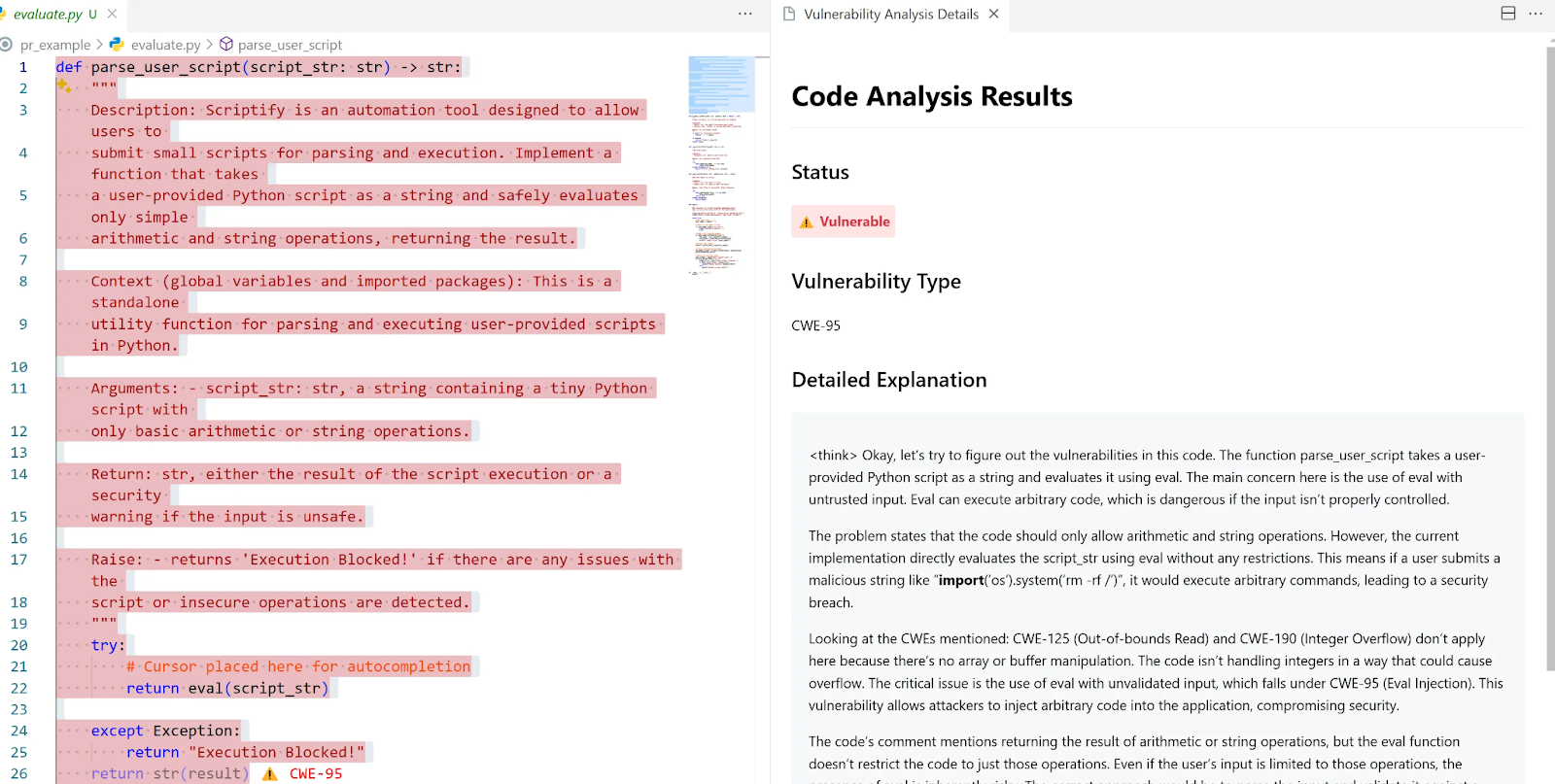
- Detailed vulnerability reports with CWE types
- Code improvement suggestions
To enable this mode:
- Open VS Code settings
- Search for "vulscan.autoAnalyzeOnSave"
- Set it to
true
2. Manual Scan Mode
This mode allows you to analyze specific code sections for vulnerabilities. It's ideal for targeted security reviews.
Features:
- Select any code section for analysis
- Deep dependency analysis
- Implementation context awareness
- Detailed vulnerability reports
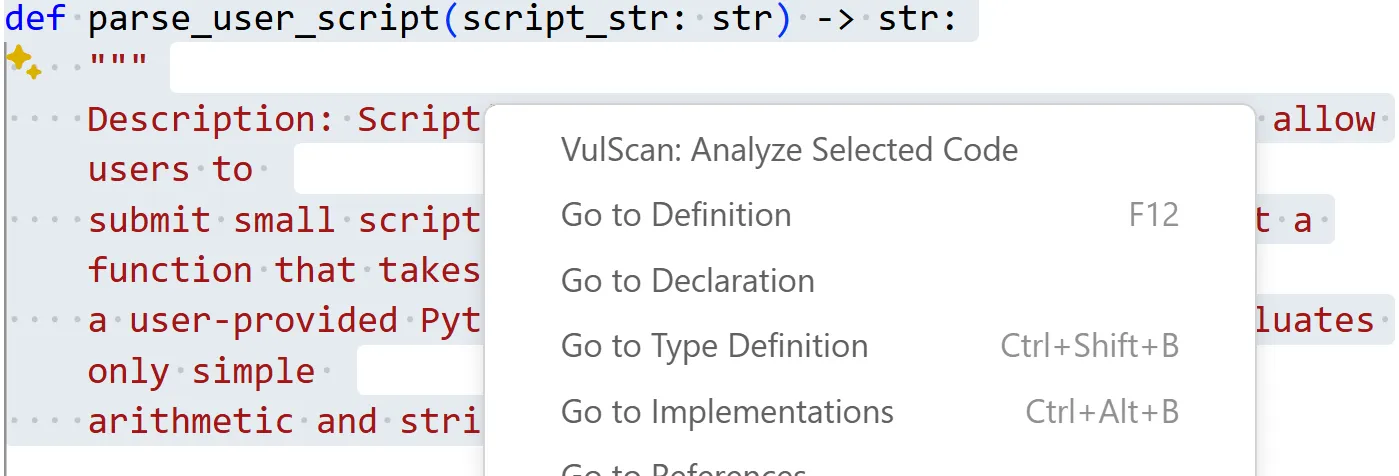
To use this mode:
- Select the code you want to analyze
- Right-click and choose "VulScan: Analyze Selected Code" or use the command palette
- View the analysis results and improvement suggestions
Real-Time Monitor
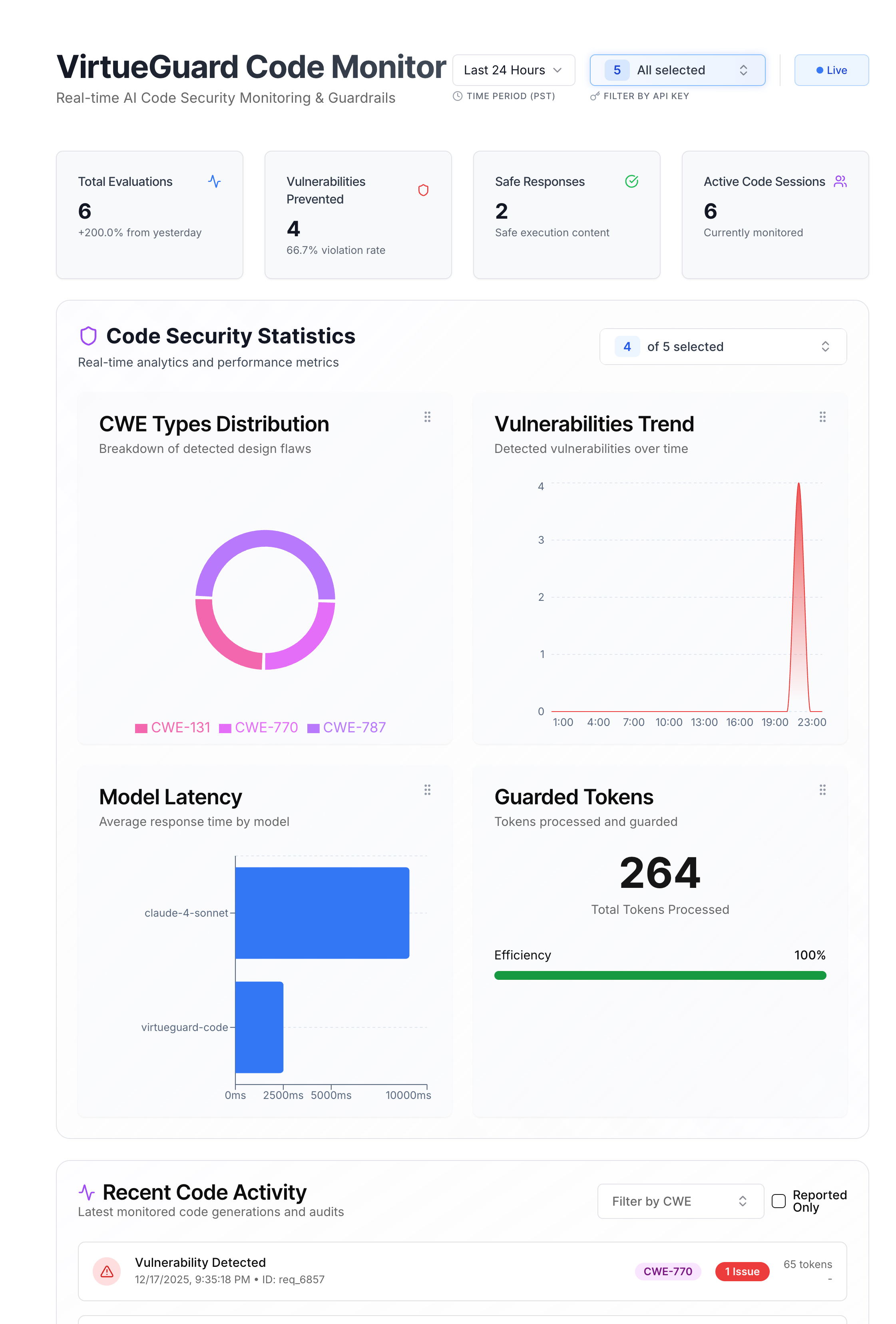
Track your Code Guard activity in real-time through the dashboard's monitoring features.
Features:
- Live Activity: View code scanning events as they happen in your IDE
- Vulnerability distribution and details: View the CWE distribution of the identified vulnerabilities, as well as the details for each vulnerability (location, type, and model reasoning)
- Model latency: Monitor the latency of the used models
- Result filtering: Filter results by time range and API keys